Change notification parameters
Navigate to Cepheo > Revision > Setup > Change notification parameters
General:
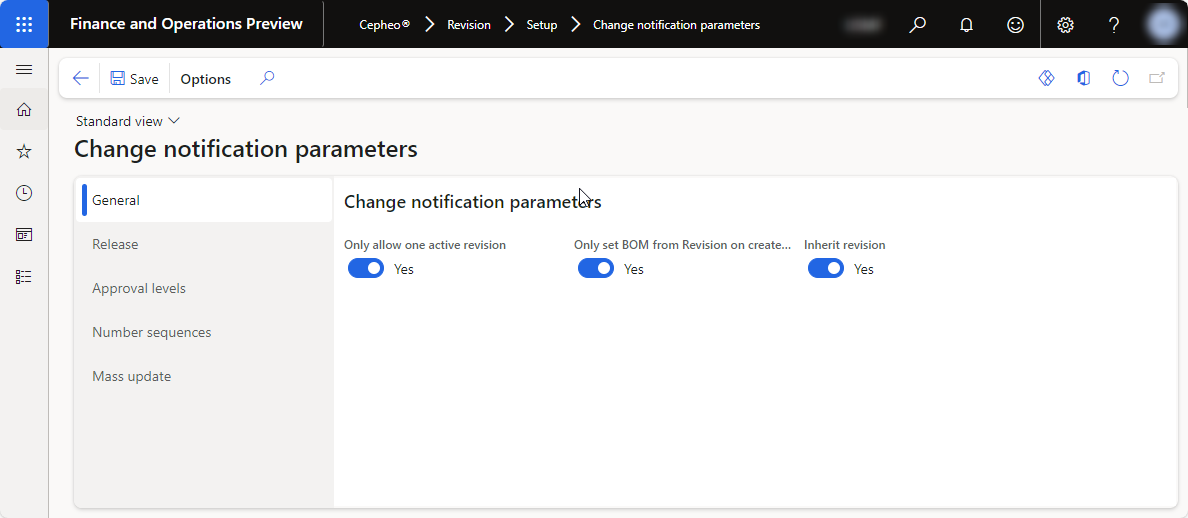
Settings | Description | Recommended Setting |
Only allow one active revision | If this is set to “Yes” previous revision and BOM is set to “Approved” when new revision is activated. | “Yes” |
Only set BOM from revision on create | If this is set to “Yes” BOM-Id is set only when production order is created | “Yes” |
Inherit revision | If this is set to “Yes” and dimension Revision is not set active for Masterplan, the active Revision with BOM is set to production upon firming | “Yes” |
Release:
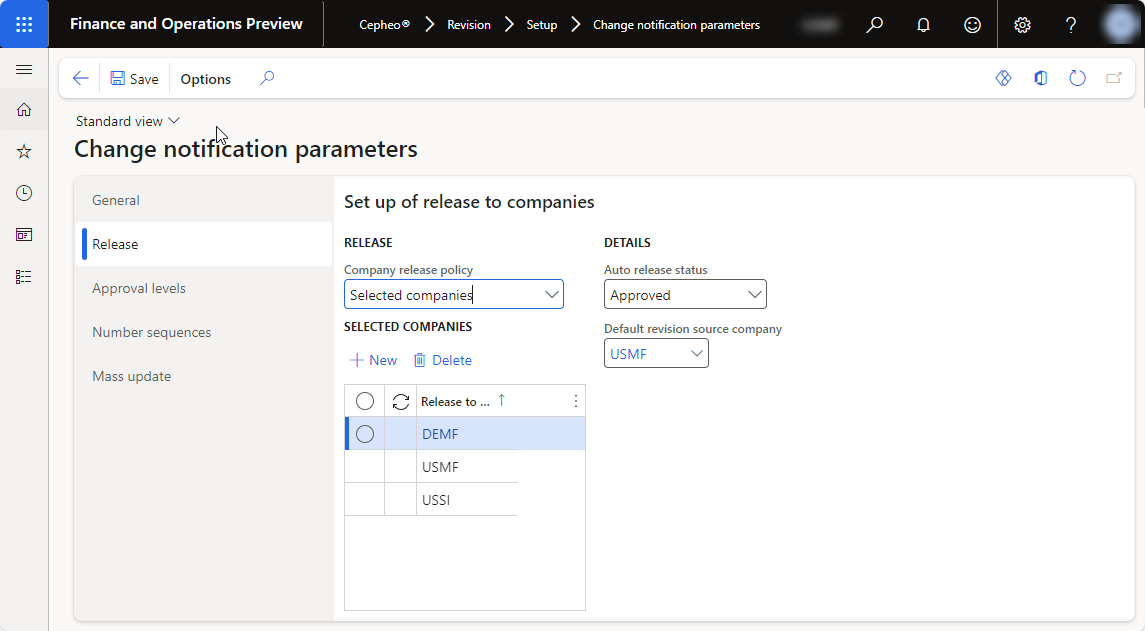
Settings | Description | Recommended Setting |
Company release policy |
| "Selected companies" if the you are using intercompany |
Auto release status | Select the minimum revision status that the revision must have to be created in other companies | "Approved" |
Default revision source company | Select the company where the revisions are maintained |
Approval levels Change Notification:
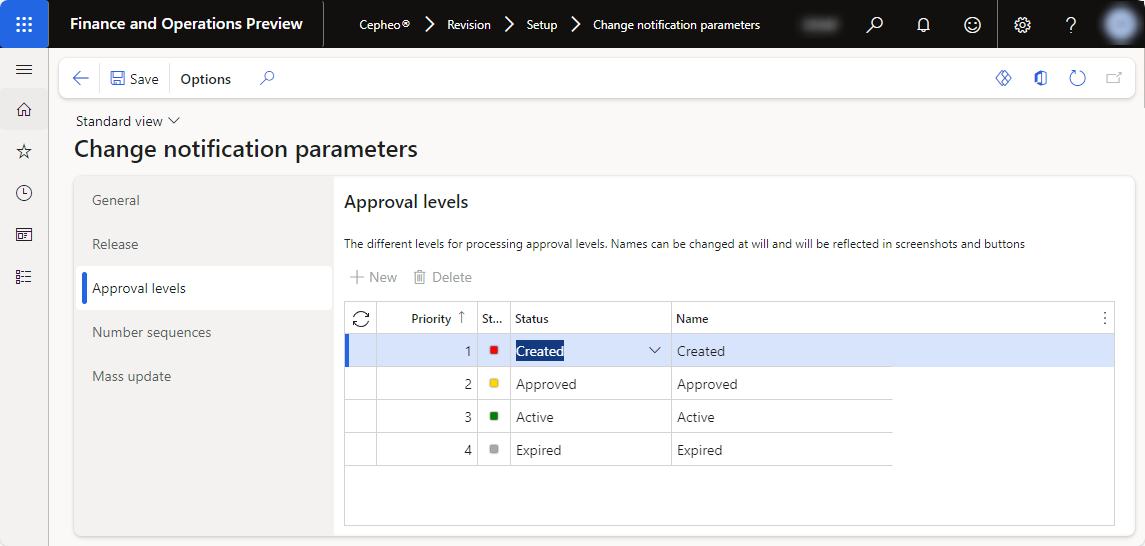
Settings | Description | Recommended Setting |
Priority 1 | Status for Created ECN | “Created” |
Priority 2 | Status for Approved ECN | “Approved” |
Priority 3 | Status for Active ECN | “Active” |
Priority 4 | Status for Expired ECN | “Expired” |
Number sequence:
Number sequence used for new Engineering Change Notification (ECN)
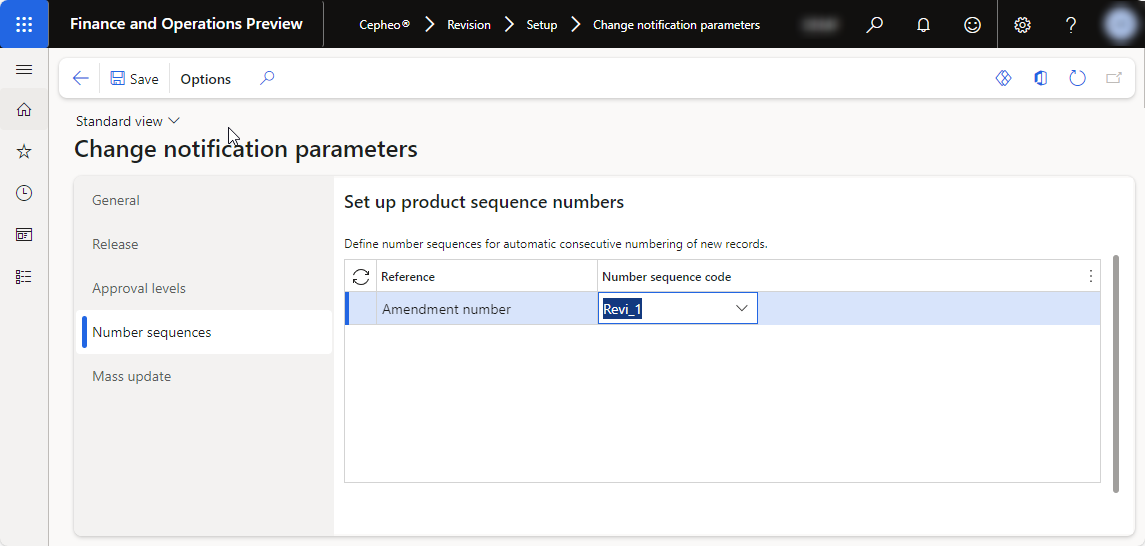
Mass update:
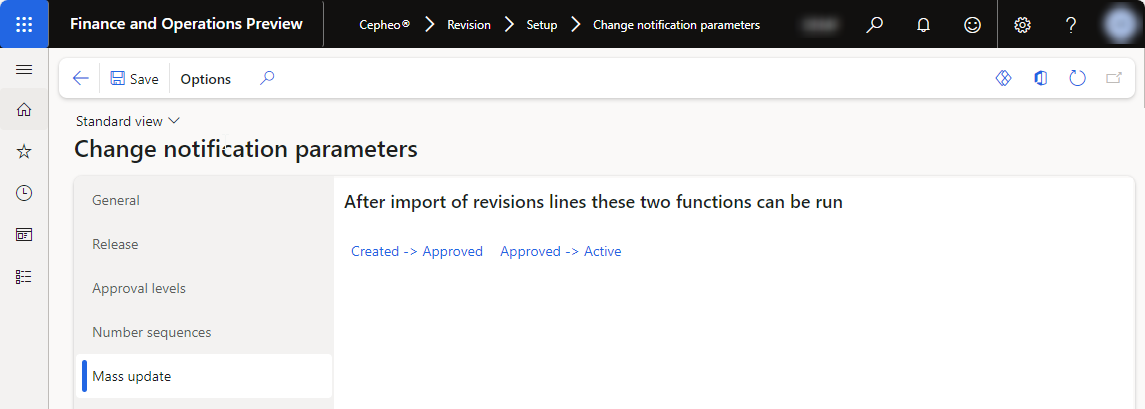
After a import of revisions you can change the status of all revisions to a new status.
Click on "Create -> Approved" to change status on ALL revisions with status "Create" to status "Approved".
Click on "Approved-> Active" to change status on all revisions with status "Approved" to status "Active".