ESG Shipping Packaging on Shipping Note

ESG Shipping Packaging on Shipping Note
Purpose
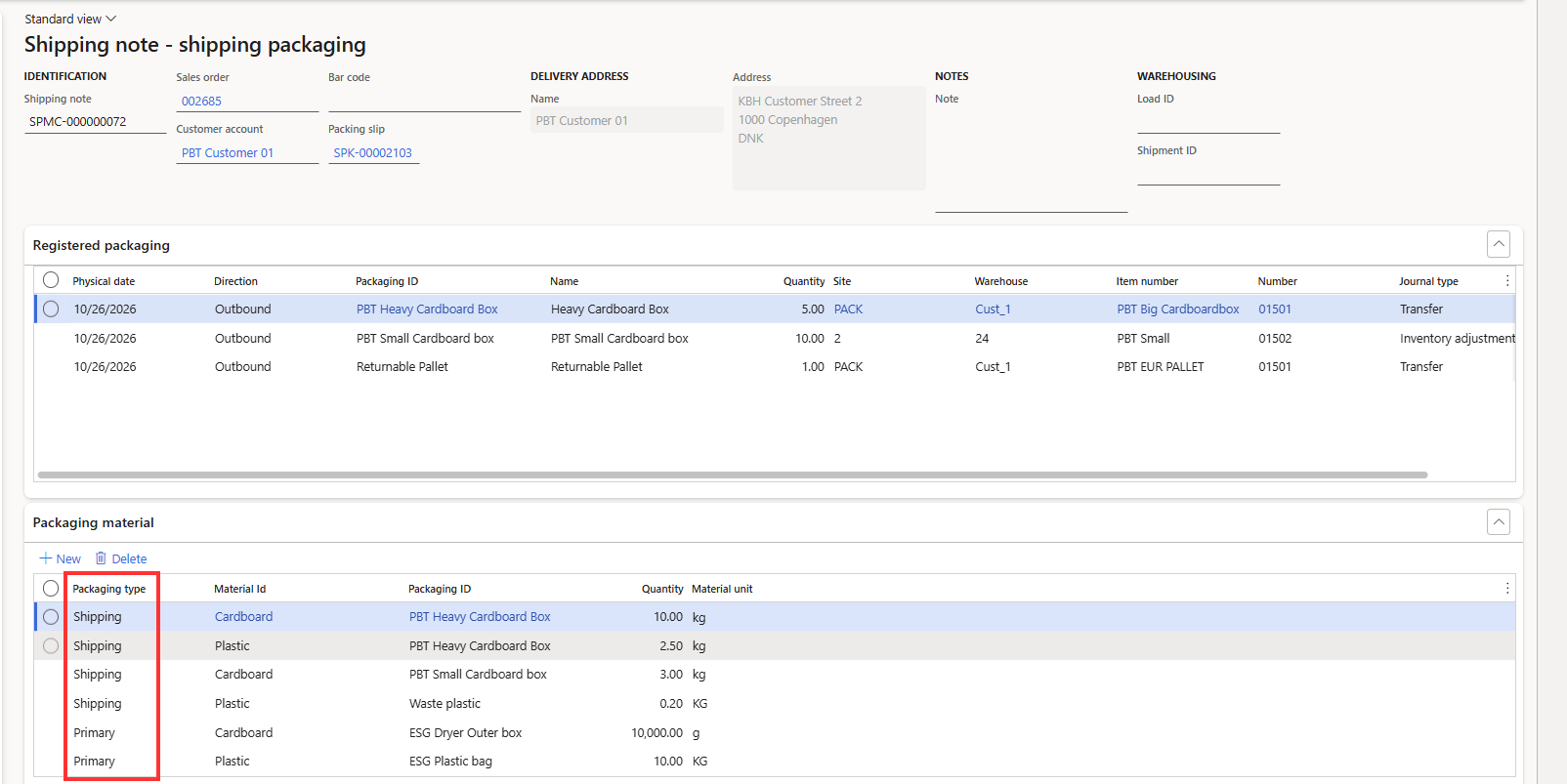
This guide explains how shipping packaging is registered and how packaging can be added or removed before posting. It also explains how the ESG material lines appear on the shipping note.
Shipping and primary packaging on the note
Packaging type | Source |
Shipping | Package quantities posted through Shipping Packaging Management, multiplied by material quantity per package. |
Primary | Item primary-package setup calculated from sales packing-slip quantities. |
 |
Manual registration from an order
1. Open the sales or purchase order.
2. Open the Shipping packaging area under the relevant Pick and pack or receiving action.
3. Open or create the shipping note.
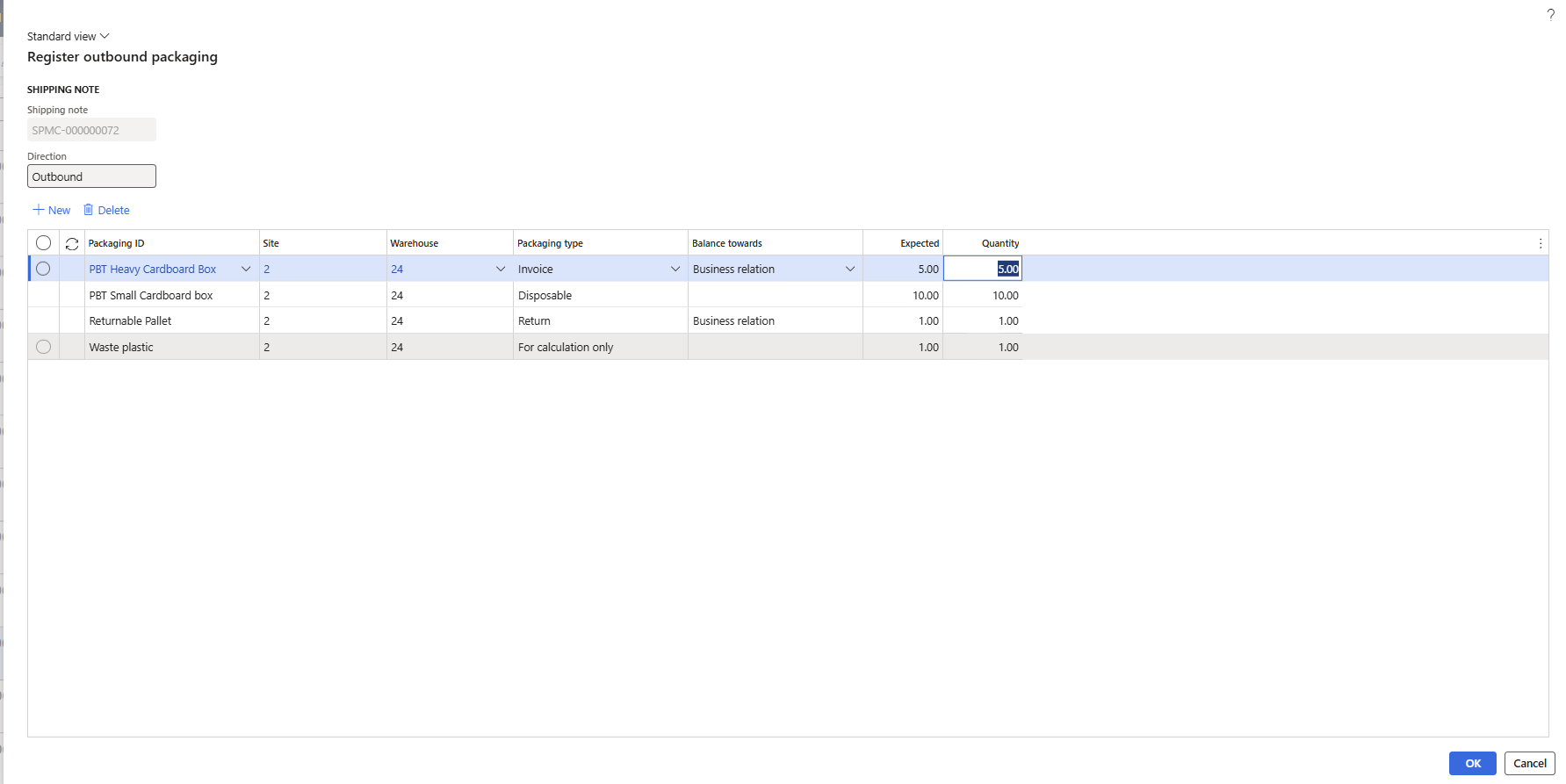
4. Use Register outbound packaging for packaging sent out, or Register inbound packaging for packaging received or returned.
5. Review the suggested package lines.
6. Add, remove, or change lines to match the physical packaging.
7. Enter optional Notes, such as truck registration or container ID.
8. Select OK to register the packaging.
Direction: Outbound means packaging sent from the company. Inbound means packaging received by the company. |
 |
Add or subtract packaging during packing-slip posting
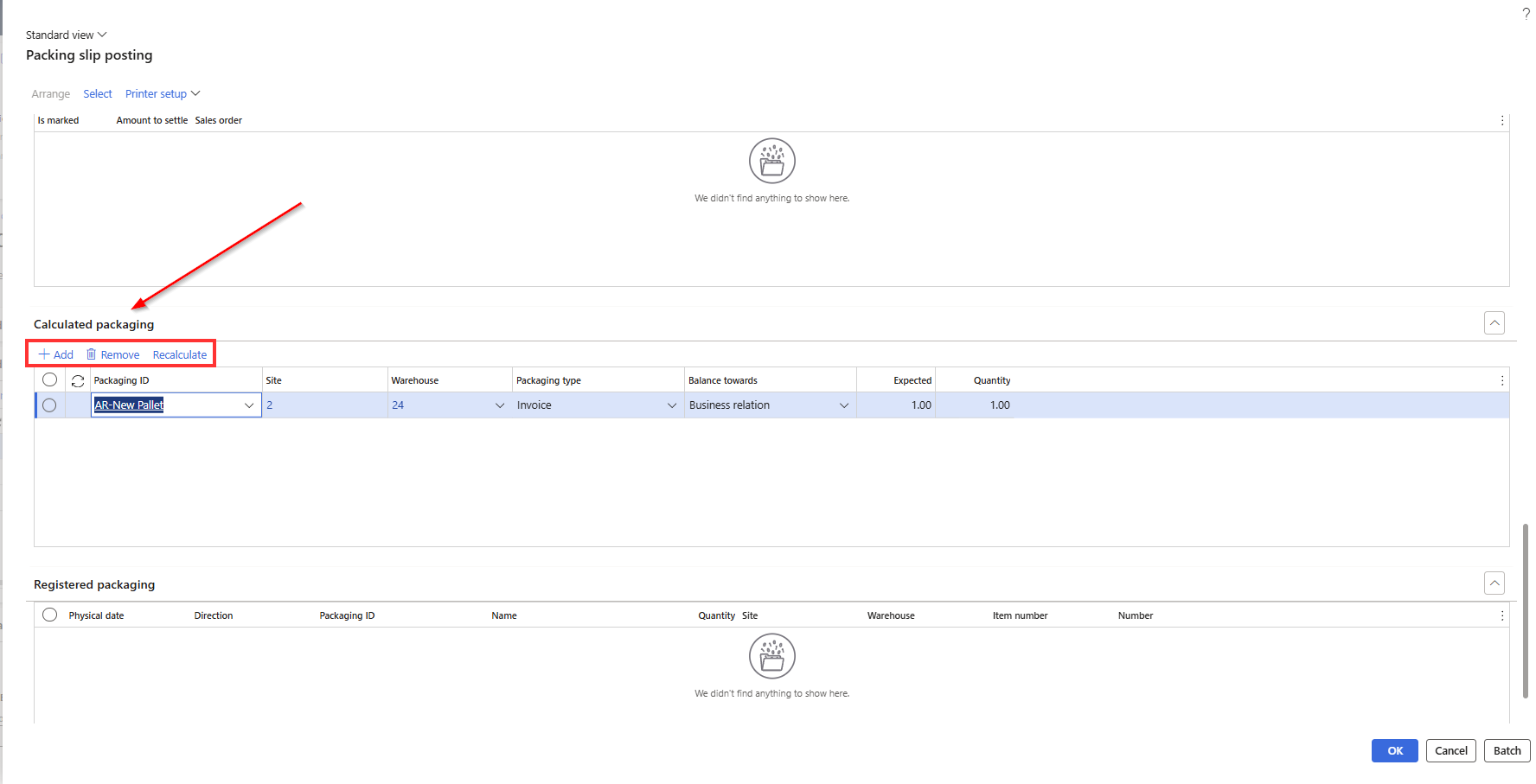
When automatic registration is enabled, calculated packaging is shown during packing-slip or product-receipt posting. The user can amend the result before the update is posted.
1. Open the packing-slip posting dialog.
2. Review the Calculated packaging tab for the update quantity.
3. If the update quantity changed, select Recalculate before posting.
4. Select Add to include a package not present in the calculated setup.
5. Select Remove to exclude a calculated package.
6. Adjust quantity or Packaging ID if the physical packaging differs.
7. Post the packing slip.
Posting control: The values shown on Calculated packaging are the values posted. Recalculate after changing the update quantity. |
 |
Correct or cancel posted packaging
Where standard Correct or Cancel actions are available on packing-slip and product-receipt journals, corresponding shipping-package quantities are reversed with the appropriate sign.
Transaction | Original sign | Correction/cancel sign |
Sales order, outbound | Positive | Negative |
Sales return, outbound | Negative | Positive |
Purchase order, inbound | Positive | Negative |
Purchase return, inbound | Negative | Positive |
1. Open the relevant packing-slip or product-receipt journal.
2. Select Correct or Cancel.
3. Set the quantity to reverse.
4. Select Recalculate if the quantity has changed.
5. Review Calculated packaging.
6. Complete the correction or cancellation.
7. Open the shipping note and verify the reversing packaging records.
How ESG material is calculated
Shipping material quantity = material quantity per package x number of packages.
Example: A reusable crate contains 0.8 kg of plastic. Posting 10 crates creates a Shipping material quantity of 8 kg of plastic on the shipping note. |
Worked example: calculated pallets plus one extra box
1. The system calculates 2 pallets for the packing-slip quantity.
2. The warehouse physically uses 2 pallets and 1 additional disposable box.
3. In Calculated packaging, keep the 2 pallets.
4. Select Add and add the disposable box with quantity 1.
5. Post the packing slip.
6. Review the shipping note and confirm that the Shipping material lines include both package definitions.
Data-quality checks
- Every physical package that should contribute material data has a Material ID.
- Material quantity and unit are maintained per package.
- Packaging group and item rules produce the expected calculation.
- Changing a Packing slip ID can regenerate Primary material lines.
- True duplicates within the same Packaging type should be investigated before deletion.