Activate an Environment
 Updated
by Dawid Kaczmarek
Use this procedure after installation. You need FO credential-maintenance permissions and an authorized licensing-portal administrator.
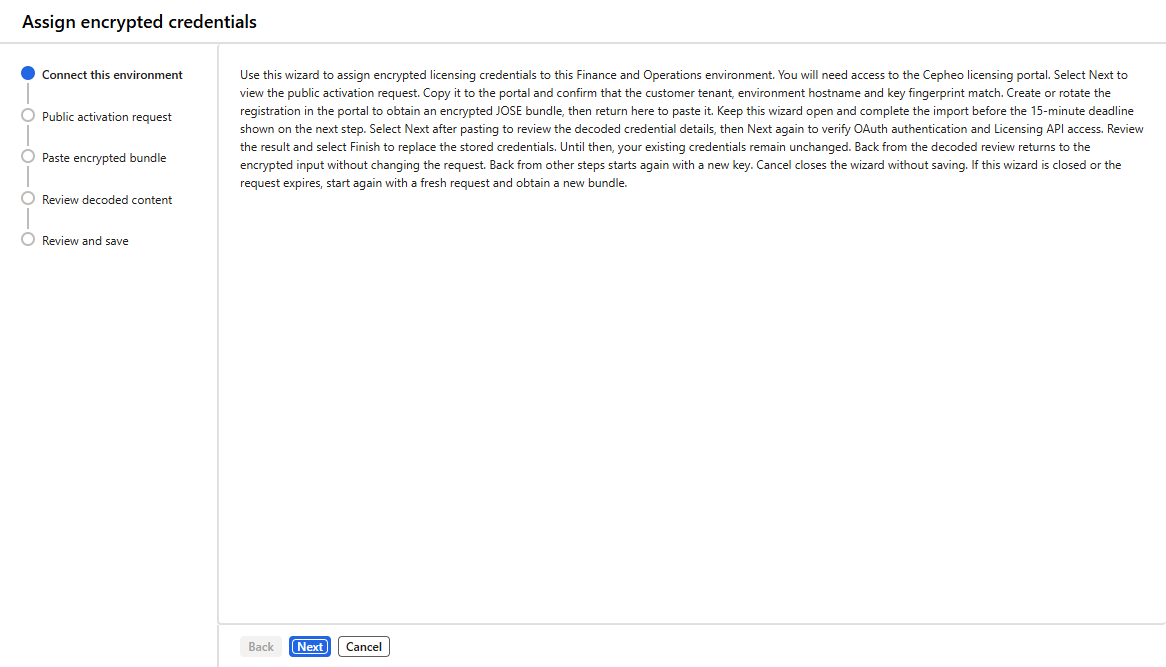
In FO
- Open Cepheo License Management > Connection > Assign encrypted credentials.
- Select Next. Copy the complete Public activation request JSON.
- Keep the wizard and session open. The request expires 15 minutes after creation; check its UTC deadline.
In the licensing portal
- Select the correct customer and licensing environment. Under Entra External ID clients, choose Create registration, or Rotate secret for an existing matching client.
- Paste the request. Compare the customer tenant, FO hostname, fingerprint and deadline with FO.
- Keep Read licenses; include Send telemetry for normal synchronization. Complete the operation and copy the encrypted JOSE bundle.
Return to FO
- Paste the bundle. Select Next to inspect decoded content; the secret is redacted.
- Select Next again to verify Entra authentication and license access.
- Review the connection and expiry, then select Finish. FO saves the assignment and subsequently refreshes licenses.
Nothing is saved by Next. Cancel or pre-save failure preserves the old FO assignment, although a portal-issued secret can remain unused. A post-save refresh failure does not undo a successful save.
Back from decoded review preserves the request; other Back actions restart it. A closed or expired wizard needs a new request and bundle.
Next: Connection and credential renewal. Errors: Troubleshooting.