Set up shipments paid by receiver or third party

Use this setup when freight charges are paid by the receiver or a third party instead of the sender.
The shipment payer can be defined on the customer and carried through the sales order, shipment, and shipment booking. When the booking is submitted, Cepheo Shipment Booking sends the applicable payer information to the carrier service.
Payer options
The following payer options determine how freight charges are handled:
- Sender – The sender pays the freight charges. No shipment payer account is sent to the carrier service.
- Receiver – The receiver pays the freight charges. The shipment payer account is sent to the carrier service.
- Third party – A third party pays the freight charges. The shipment payer account is sent to the carrier service.
Shipment payer account
The Shipment payer account identifies the customer account that should be charged for the shipment.
The account is based on a customer account in Dynamics 365 Finance and Operations. Because carriers may use a different account number, you can map the Dynamics 365 customer account to a carrier-specific external account.
When the shipment booking is submitted:
- Shipment Booking identifies the Shipment payer account.
- It checks whether an external payer account has been configured for the selected carrier.
- If a mapping exists, the External code is sent to the carrier.
- If no mapping exists, the Dynamics 365 customer account is used.
Set up payer accounts for a carrier
Navigate to Warehouse management > Setup > Shipping > Shipping carriers
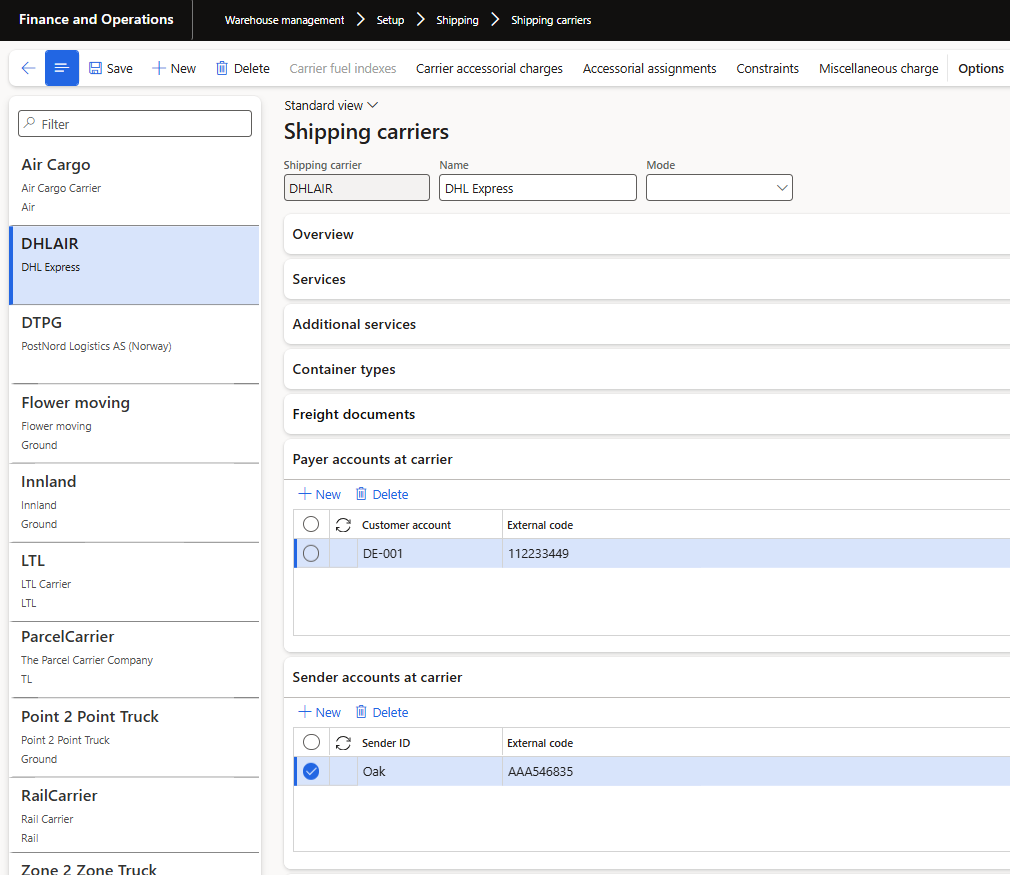
Select the relevant carrier, and then:
- Expand Payer accounts at carrier.
- Select New.
- In Customer account, select the customer account used as the shipment payer account.
- In External code, enter the payer account expected by the carrier.
Example
Assume the customer account in Dynamics 365 is DE-001, but the carrier identifies the same customer as 112233449.
Configure:
- Customer account: DE-001
- External code: 112233449
When the shipment is submitted to this carrier, 112233449 is sent as the payer account.
Set up sender accounts for a carrier
Navigate to Warehouse management > Setup > Shipping > Shipping carriers
Some carriers also require a carrier-specific sender account.
Select the relevant carrier, and then:
- Expand Sender accounts at carrier.
- Select New.
- In Sender ID, select the sender used for the shipment.
- In External code, enter the sender account expected by the carrier.
The sender account identifies your organization to the carrier and is separate from the shipment payer account.
Defaulting of payer information
Payer information can originate from the customer and is carried forward as the shipment progresses through Dynamics 365:
Customer → Sales order → Shipment → Shipment booking
Customer
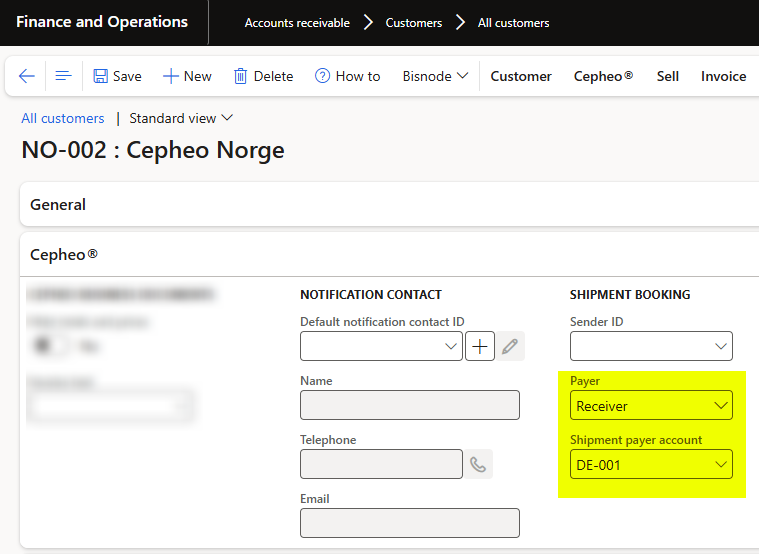
Navigate to Accounts receivable > Customers > All customers
On the customer, specify the default Payer and Shipment payer account.
These values are used as defaults when a new sales order is created.
Sales order
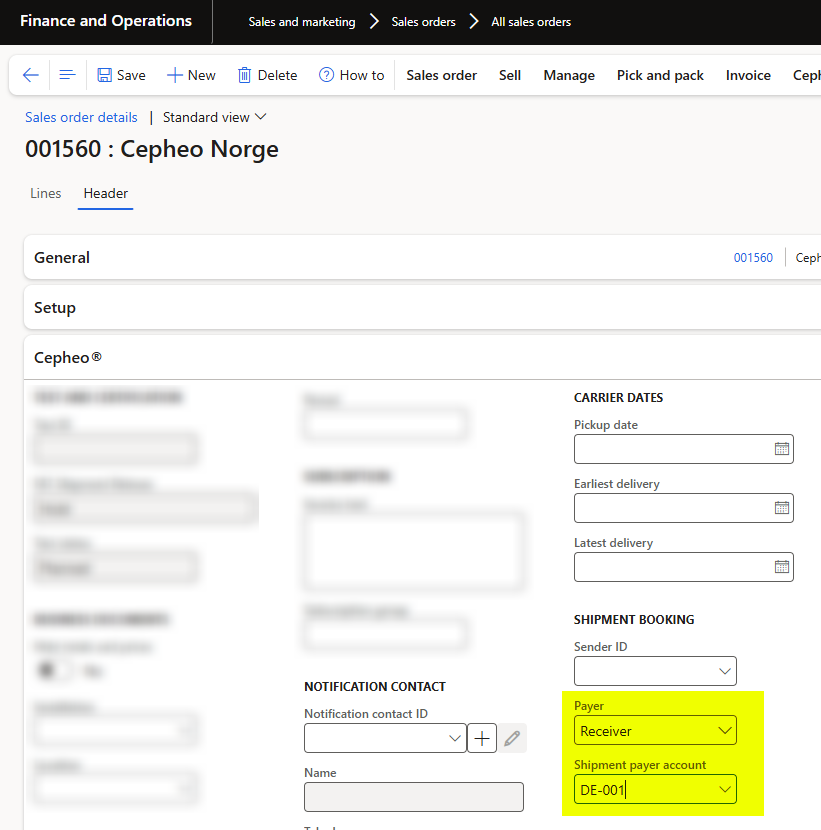
Navigate to Sales and marketing > Sales orders > All sales orders
The Payer and Shipment payer account can be changed on the sales order.
When a shipment is created, the values from the sales order are used as defaults for the shipment.
Shipment
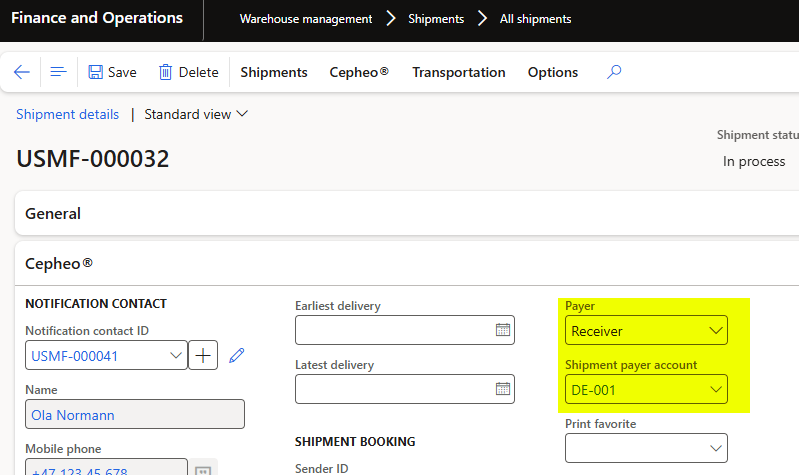
Navigate to Warehouse management > Shipments > All shipments
The Payer and Shipment payer account can be changed on the shipment.
When a shipment booking is created, the values from the shipment are used as defaults for the booking.
Shipment booking
Navigate to Cepheo® > Shipment booking > Shipment bookings
The Payer and Shipment payer account can be changed before the booking is submitted.
The values on the shipment booking determine the payer information sent to the carrier service.
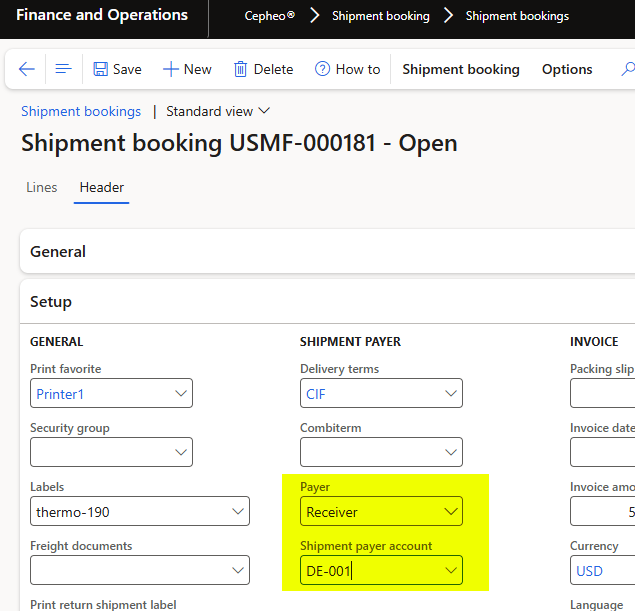
Before submitting the shipment booking
Verify that:
- Payer is set to the party that should pay the freight charges.
- The correct Shipment payer account is selected when the payer is Receiver or Third party.
- A carrier-specific External code is configured if the carrier uses a different account number.
- The correct sender account is configured if required by the carrier.