Setup
 Updated
by Dawid Kaczmarek
Updated
by Dawid Kaczmarek
Advanced quality control parameters
Path: (Quality\Setup) Besides the quality control parameter in the Inventory and warehouse parameters, the feature 'Advanced quality control' contains a set of parameters in a separate form 'Advanced quality control parameters’, that holds 5 fast tabs:
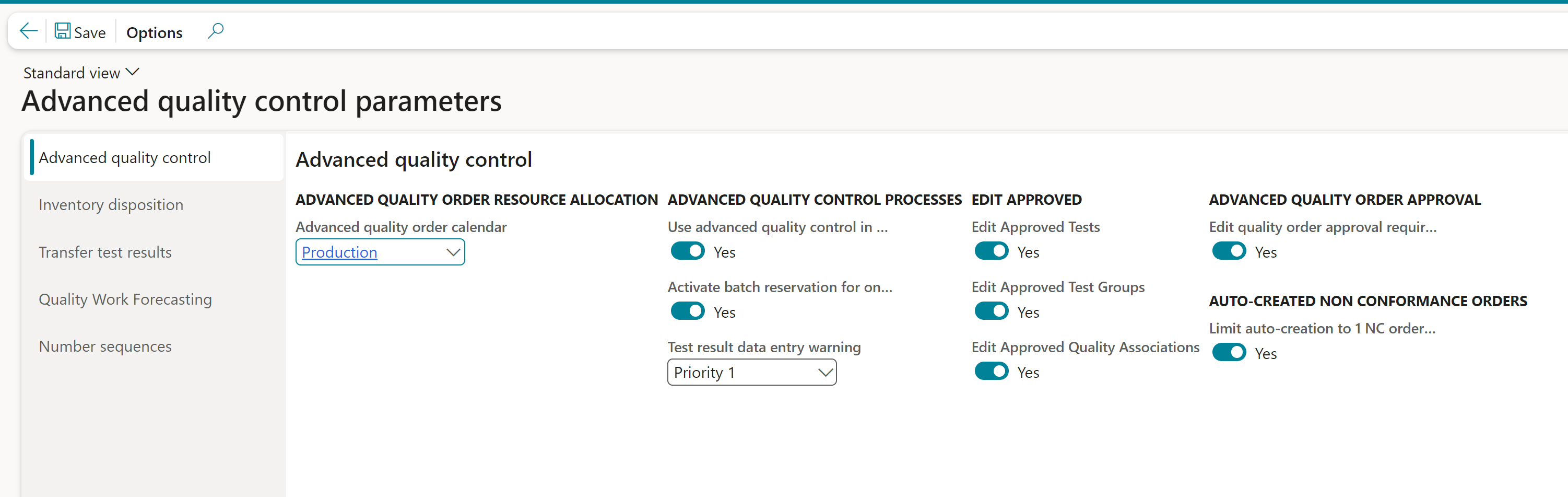
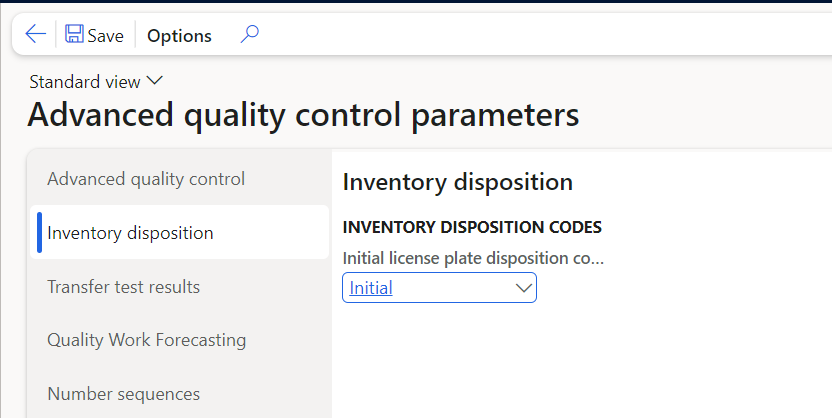
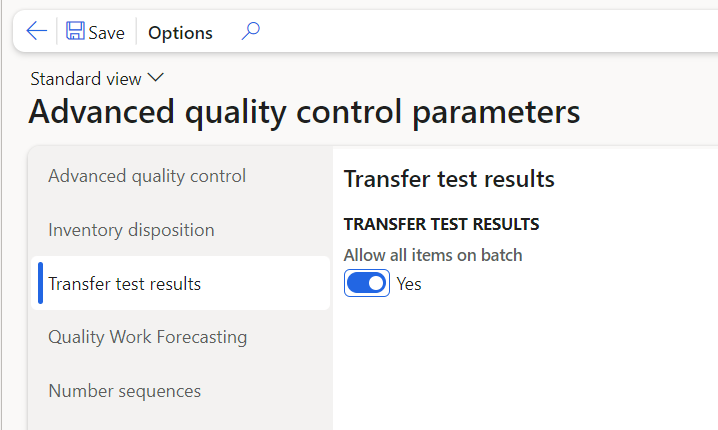
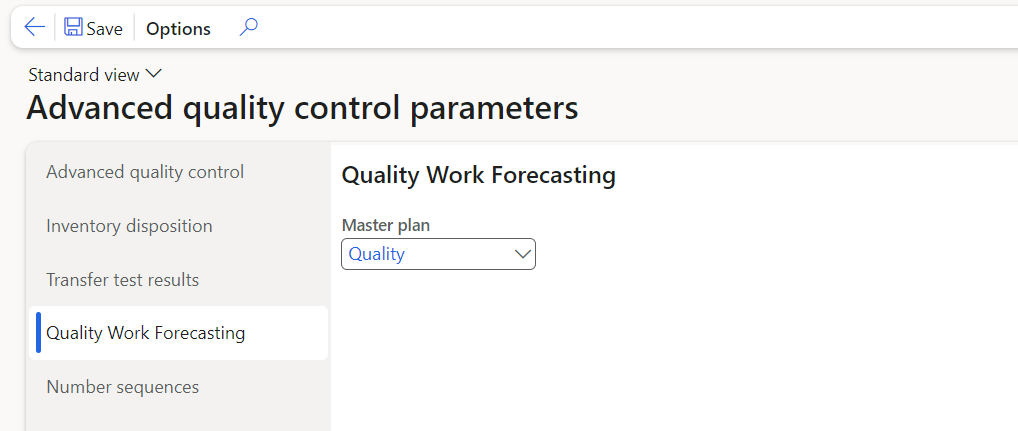
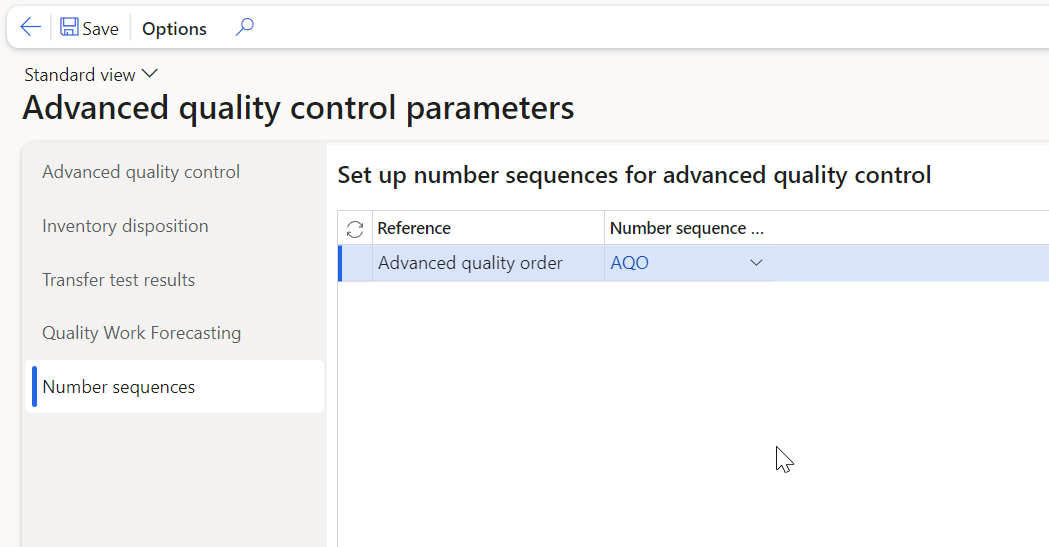
Figure 9: Advanced quality control parameters
Field | Description | Mandatory |
Quality order calendar | Identification of the calendar used for advanced quality order scheduling | (YES) |
Use quality control in warehouse item receiving | Mark this field to enable advanced quality control when using the warehouse mobile client in the process of receiving against purchase orders: If the process triggers creation of advanced quality orders, this/these are presented right away, and results can be entered for the individual tests of the order as part of the receipt process (or later) NOTE : With release October 2020 this parameter has been extended to being stated on the individual warehouse device menu items that now are supported (see 4.8.1) | NO |
Edit approved Tests | Allow editing of approved test | NO |
Edit approved Test Groups | Allow editing of approved test groups | NO |
Edit Approved Quality Associations | Allow editing of approved quality associations | NO |
Edit Quality order approval requirement | Can the approval requirement on a quality order be changed | NO |
Initial license plate disposition code | Default disposition code that is allocated to a license plate when on-hand is added to it. An item specific value can be setup on Released products. We recommend that products that are subject to quality control are set up using a 'blocking' disposition code, so that is it the results of the advanced quality orders, that determine whether a license plates on hand qty is released (made available) or not. | (YES) |
Allow all items on batch | Transfer test results from all items with the same Batch number. This is e.g., very useful if you are using the same batch number for the bulk and the Finished product and you take out sample for analysis during both and want result from both batch/products to possible to transfer to the batch. | NO |
Masterplan | Masterplan used when forecasting quality control work | NO |
Set up number sequences for advanced quality control | Setup the number sequence used when creating Advanced quality orders | YES |
Limit autocreation to 1 NC order per item/batch | Default value NO (unticked) – if ticked YES only one non- conformance order will be created per quality order (need to be setup on the test group to trigger the autocreation | NO |
Quality Sample Management Parameters
In this form you can define the parameters used when using the Quality samples processes:
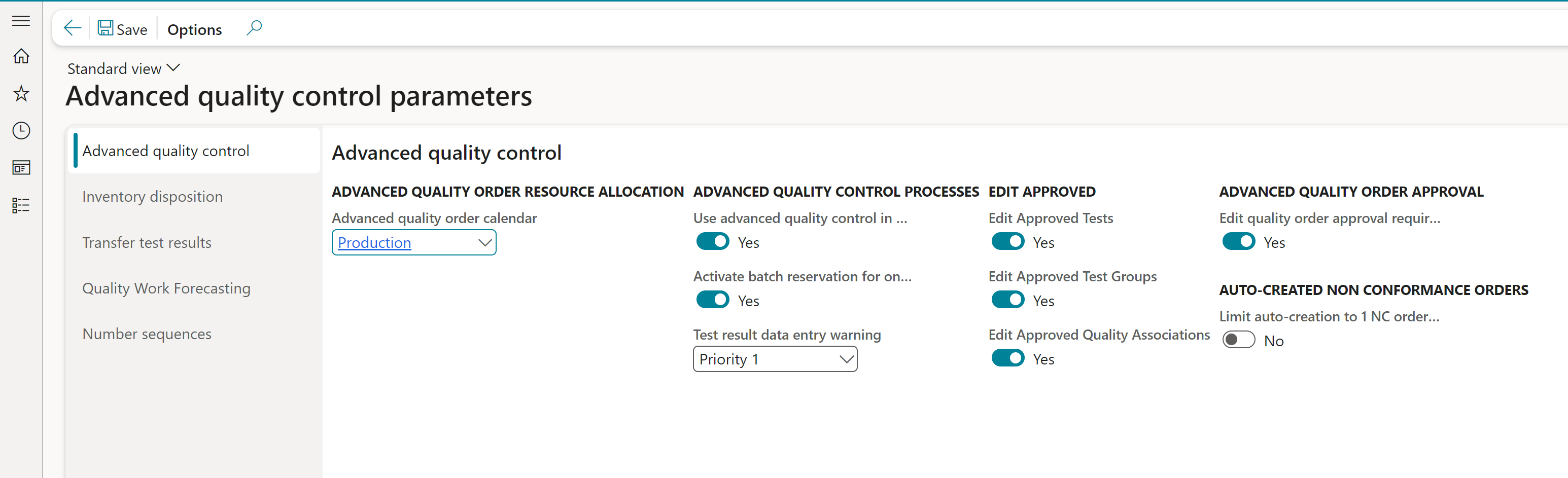
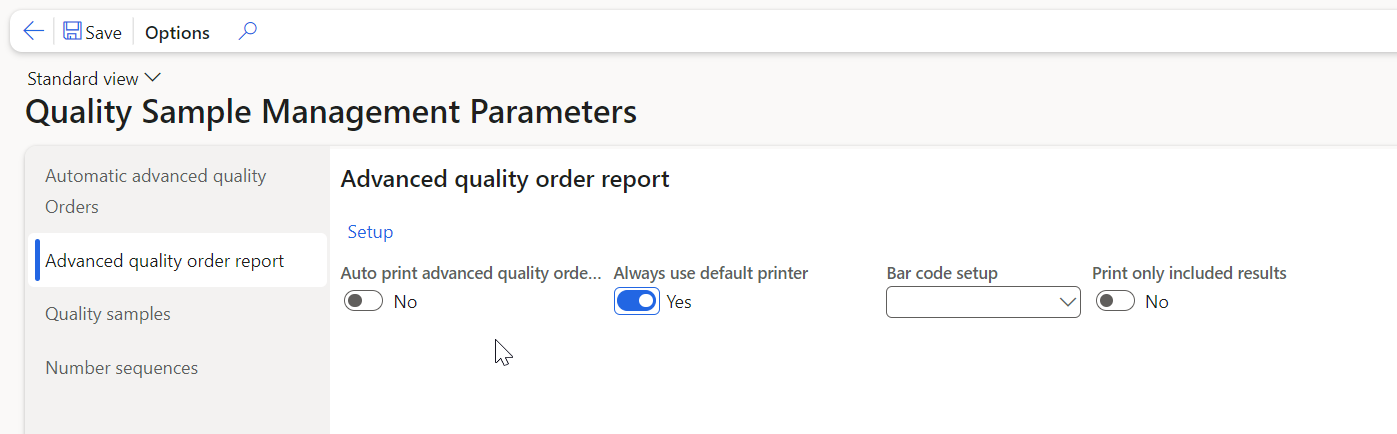
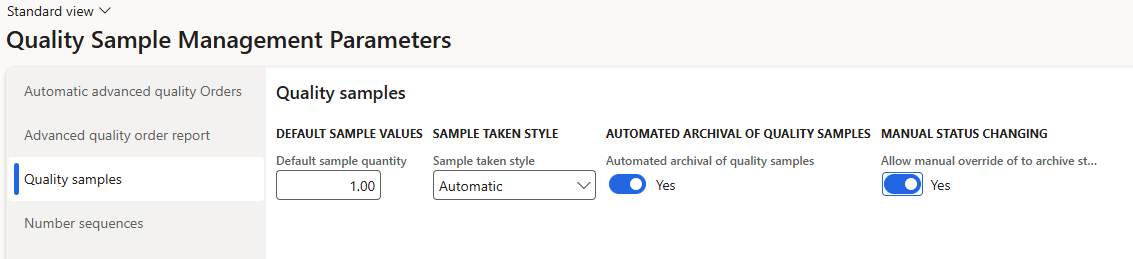
Figure 10: Quality sample management parameters
Page | Group/field | Description |
Automatic quality orders | Archive inventory | Defines where archived samples are placed |
Stability test inventory | Defines where stability test samples are placed | |
Laboratory inventory | The value defines where samples are placed when in route to be analyzed i.e., the laboratories. | |
Quality order resource allocation | Define calendars to be used by quality orders to calculate the expected date of completion. | |
Set phase to ‘Started’ | Sets quality order phase to ‘Started’ for quality orders created automatically by registration of samples. | |
Quality order report | Quality order report Setup | This controls the settings of print destinations for automatic printed quality order reports. This is only available if auto print has been activated NOTE: The report should only be auto-printed to a stated printer OR as an attachment to an email, auto-printing to screen is not a recommended setting, manual triggered quality reports the print medium Screen is OK. |
Auto print quality order | Is a quality order report going to be printed automatically when a quality order is created? The number of wanted reports is defined for each test group. NOTE : If you are using a setup in the Advanced quality associations where you during purchase receive in the warehousing app. trigger a sample that is then auto-registered in lab to create an adv. Quality order, the report should not be set up to be auto-printed. NOTE : When using the Warehouse management app to perform sample registration and thereby creating advanced quality orders to be automatically printed, the printing will not be performed. | |
Always use default printer | This parameter should be un-marked (NO) if you are using the functionality of creating samples that are auto registered in lab to create a quality order in the warehousing app. When you are using the app. You are not using your own user account but instead the user 'WMDPappXX’ means that it will try to find the default printer for this user. The parameter should only be marked YES if you are manually registering samples ‘In lab’ to trigger adv. Quality orders where it then will use YOUR default printer. | |
Barcode setup | The type of barcode to be used on the quality order report. NOTE : To be printed correctly, the bar code found being used must be installed at the IIS server and the reporting server. | |
Print only included results | Should all tests to be printed or only tests where results are included in validation of the quality order | |
Samples | Default sample quantity | If sample type quantity is not used on the quality association or chosen on manual creation on sample, this value will be inserted on the sample. |
Sample taken style | This parameter controls how the date and time field ‘Sample taken’ is stamped during sample creation. ‘Manual’ allows for manual entry of values ‘Defaulting’ inserts current date and time, but allows for changing ‘Automatic’ insert current date and time and locks the field The timestamp is used to calculate the release order of LP at automatic release. | |
Automated archival of quality samples | Controls whether a sample, where all quality work connected to that sample has been completed, should have status changed to “To archive” | |
Allow Manual override of to archive status | Controls whether samples which have been set to “To archive” due to being out of frequency, can be re-registered in lab for manual advanced quality order creation. | |
Number sequences | Quality sample ID | The number sequence to be used when creating new samples |
Quality sample type ID | The number sequence to be used when creating new sample types on a sample (sub-division of a sample is e.g. analyzed in different places/using other instruments) |
Sites
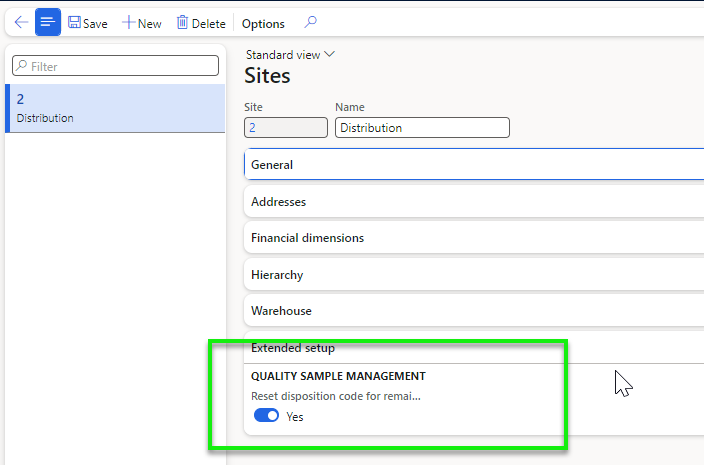
In the Sites form a parameter must be set that will allow the license plate disposition code for the LP’s before the first sample + after the last sample to be updated- See 5.1.2 for further elaboration:
Test instruments
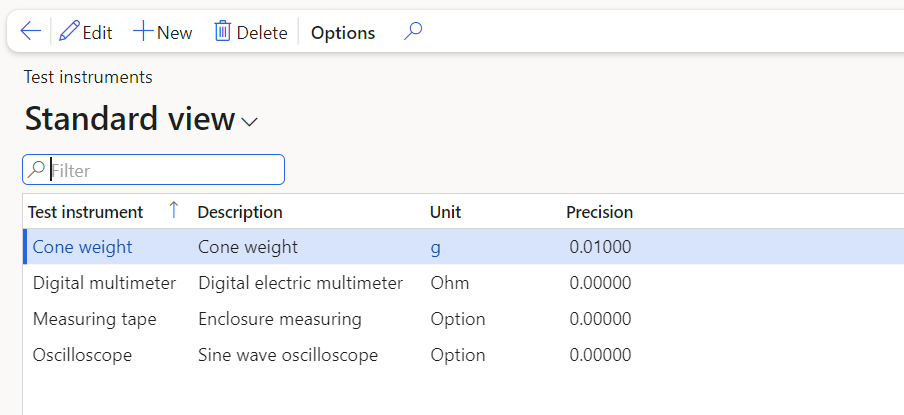
Path: (Quality\Setup\Quality control) When setting up the quality control functions, it is possible to create test instruments that can be linked to tests. It is optional/not mandatory information.
Lab sections
Path: (Quality\Setup\Quality control) This functionality allows for the creation of laboratory sections that can be connected to calendars. The calendar is used to decide when a quality order can be executed. The Laboratory deadline is the 'cut-off' time of the calendar days used when testing samples.

Test variables and outcomes
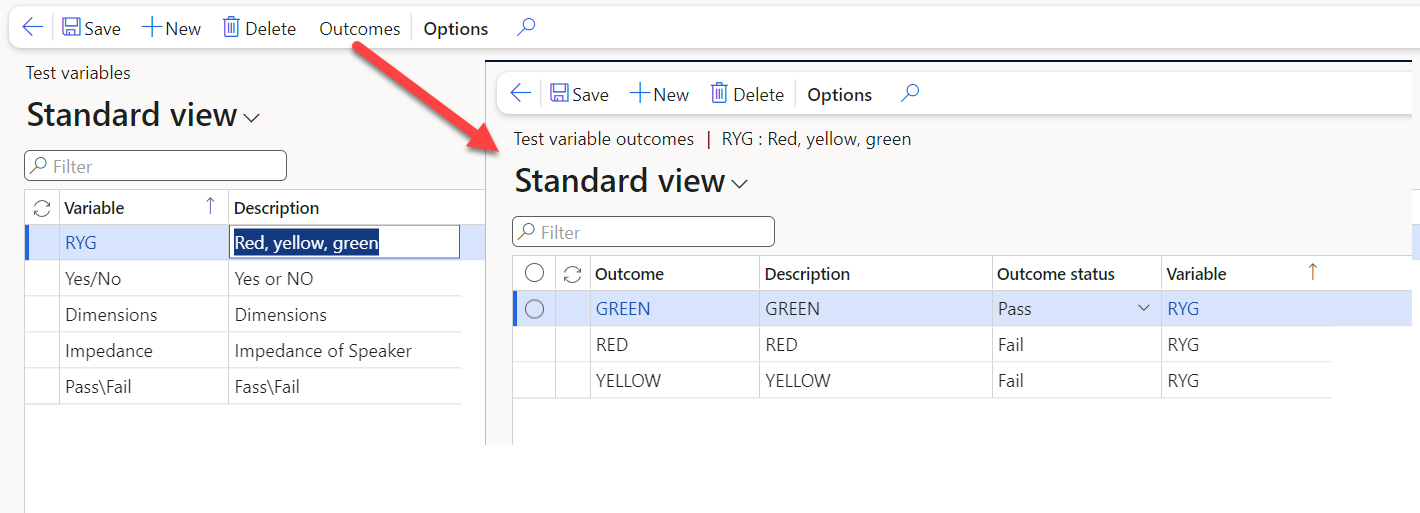
Path: (Quality\Setup\Quality control) In situations, where you are performing simple qualitative testing, like a visual inspection, it is possible to create variables that can have different outcomes, which decide whether a test will pass or fail. The test variables are linked to tests (of type Option) in the various test groups. This is a supplement to actual quantitative testing, where the results of specific measurements decide whether a result is a passing or failing value for a test.
Analysis methods
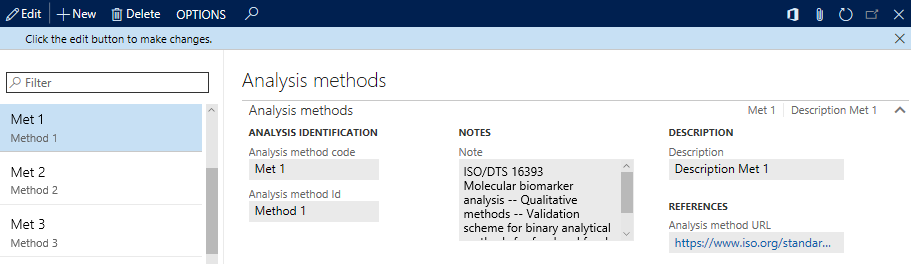
Path: (Quality\Setup\Quality control) Analysis methods provide a place for gathering information such as experimental protocols that can be attached using standard document management or a link to an online description.
Tests
Path: (Quality\Setup\Quality control) The test form is where you describe the different tests that are used for quality control. They cannot be used for actual testing, until they are part of a test group , which controls the use of the tests and their results. A test contains a lot of information that is used as default values on test groups, as well as relations to other tables.
When a test is added to a test group, information of the test will be inherited to the test on the test group, and most of the information will be editable and thereby unique for the test on the test group.
When a quality order is added, based on a test group, information of test in the test group will be inherited to the test on the quality order, and most of the information will be editable and thereby unique for the quality order.
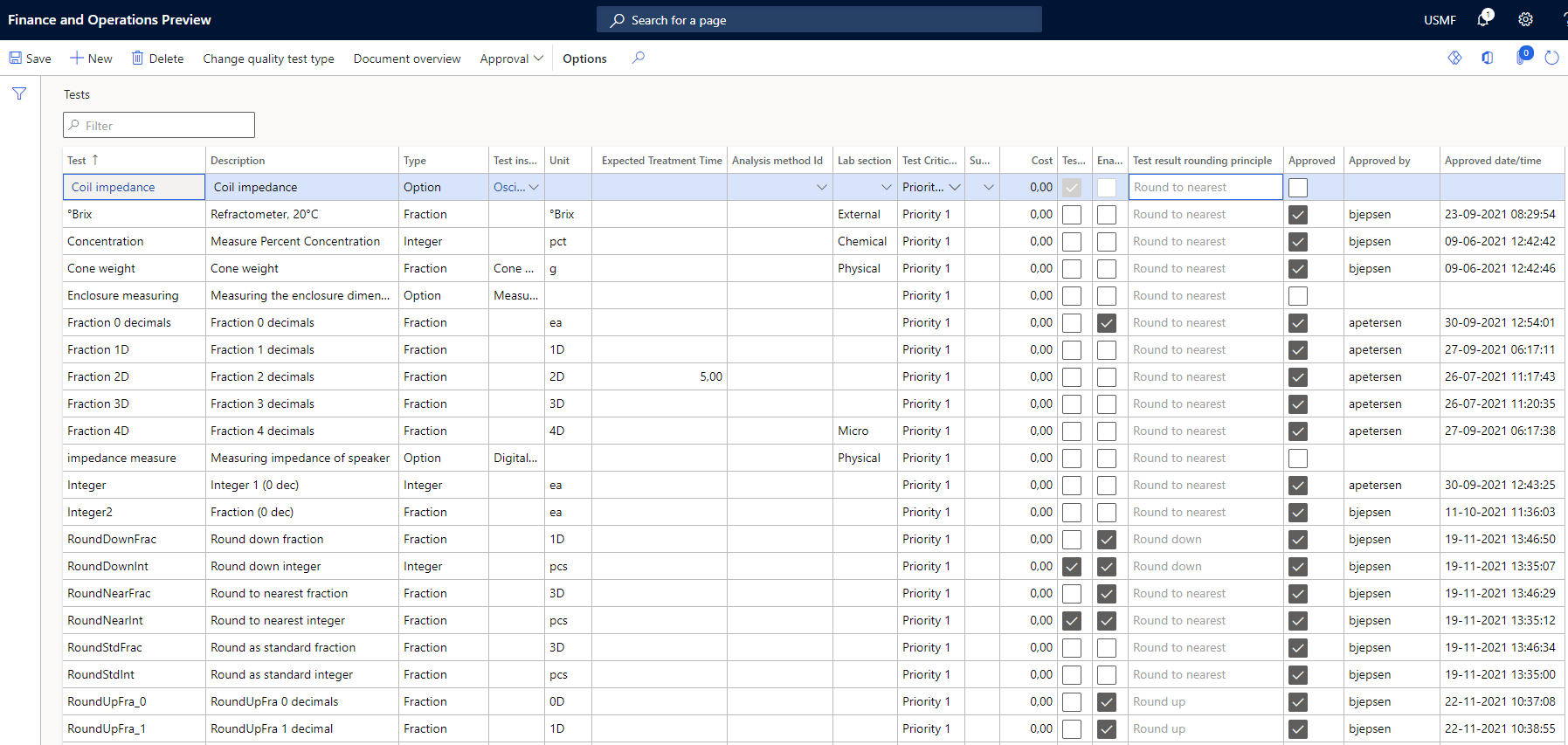
Here is an overview of the fields on the form:
Field | Description | Mandatory |
Test | The unique name/ID of the test | Yes |
Description | Description | No |
Type | What type of result should be entered for the test: The options are Fraction, Integer and Option. This value will be inherited to the test groups and determines the type of batch attributes that can be linked to the test | Yes |
Test instrument | Shows the instrument used to perform the test | No |
Unit | The unit of measure that the test result in expressed in | No for option Yes, for other types |
Expected treatment time | Expected duration of test in centi hours (ex 1.5 = 1 hour and 30 min), is used to calculate the Expected completion time according to a calendar setup for the chosen lab section | No |
Analysis method id | The method to be used when performing the test | No |
Lab section | Where the testing will be performed | No |
Test critical priority | This value describes how important the test is for the final release of a product/batch. Priority 1 (default) means that the test must be passed for the batch or license plate to be released automatically. Test with priority 2, 3 or 4, will not be taken in consideration by the automatic release process but will still impact on the status (pass/fail) when validated | Yes |
Supplementary tests | Here a test group can be inserted that will be used in case of a test failure that should result in additional testing | No |
Cost | The expected cost of performing the test. Values are expressed in the standard company currency | No |
Test result rounding on integers | Integer test results that are entered as decimal numbers will be rounded off and saved as integers. This can only be selected for tests that have the type ‘Integer’ | No |
Enable specific rounding principle | Test results and test values will be rounded off using the rounding principle specified in field ‘Test rounding principle’. If a rounding principle besides the 3 provided is wanted, it has been made possible to extend in the current framework to enable the logic for the available extra rounding principles. This will be available for both Fraction and Integer tests. | No |
Test rounding principle | Test results and test values will be rounded off using the rounding principle specified. The following principles can be selected for all types of tests setup for all decimal precisions selected for the test unit. Round to nearest (always to nearest value) Round up (always rounded up) Round down (always rounded down) | No |
Approved | Approval status | |
Approved by | User that has performed the approval | |
Approved date/time | Time of approval |
Item sampling
Path: (Quality\Setup\Quality control) Item sampling is a crucial component of quality management systems, used to determine the quantity of an item that needs to be tested during quality inspections. This process plays a pivotal role in quality orders, ensuring that the right amount of inventory is subjected to testing.
Item sampling in the Advanced Quality and Sample Management module is different from the standard quality module, although the same interface is used as a base.
Here are some of the major differences.
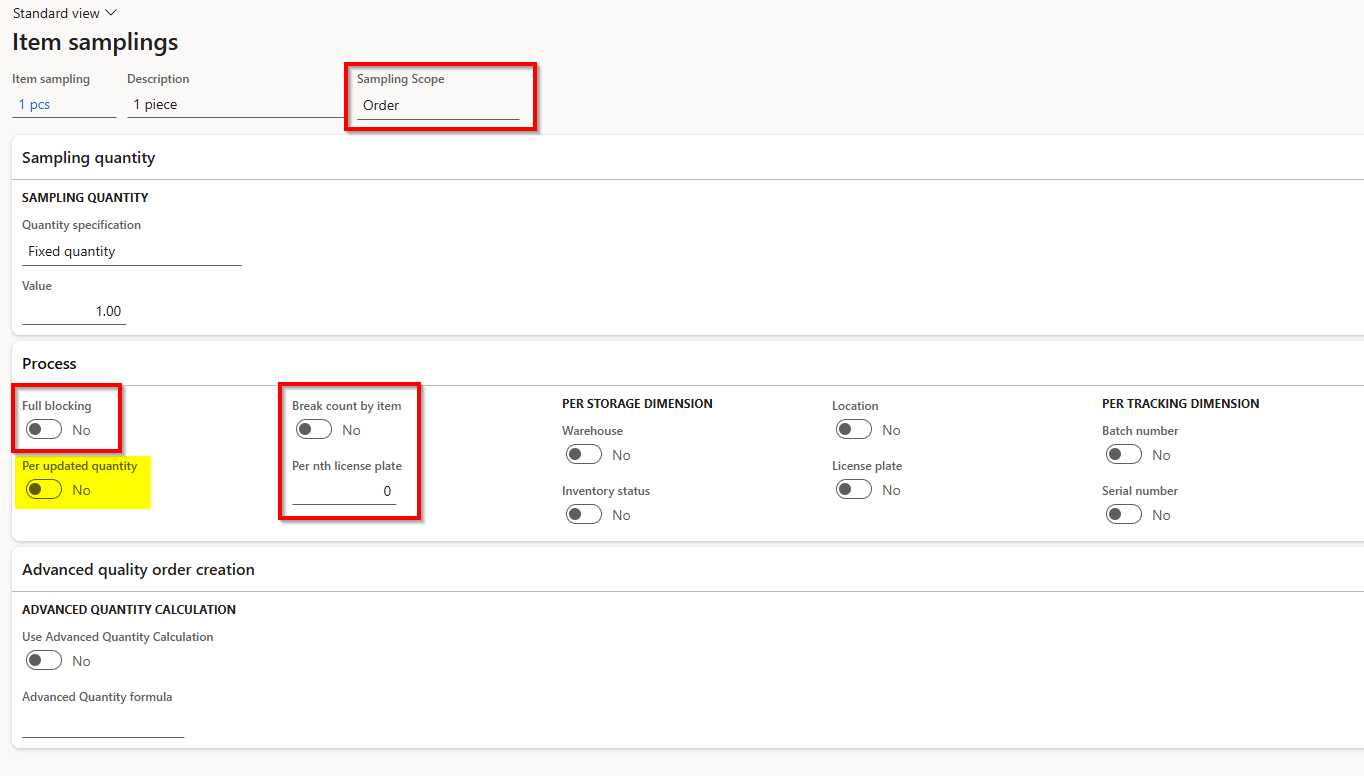
In the screenshot below the areas marked with a red box are not used by the Advanced Quality and Sample Management module.
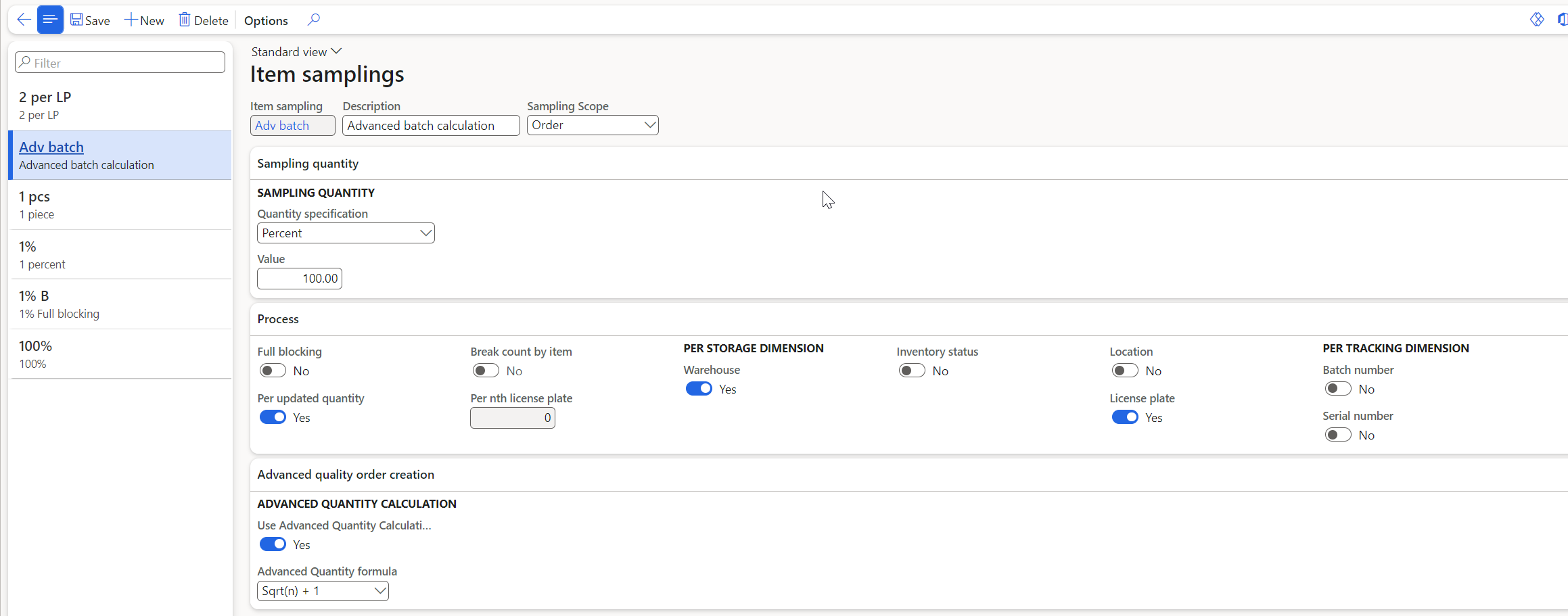
But the “per updated quantity” field marked with yellow plays an important role in creating samples, calculating the right quantity for the Advanced quality order tests and other things. See below.
Key Features:
- No Inventory Transactions for Sampled Quantities:
- Advanced quality orders do not create inventory transactions for the quantities calculated by item sampling. This means standard inventory dimensions, like Inventory status, are not utilized, and restrictions have been removed for creating advanced quality orders.
- Destructive Testing Limitations:
- Destructive testing is not possible for quantities calculated by item sampling in advanced quality orders, due to the absence of inventory transactions.
- No Inventory Blocking:
- These orders are not used to perform inventory blocking – although it is possible. Instead, blocking is managed using disposition codes at batch or license plate (LP) levels.
- Storage and tracking dimensions
- In standard quality this controls how the system should find and treat items when a quality order is completed. If for instance a quality order fails, the system needs to block all items connected to this quality order. Using these dimensions the system can narrow down and only block the license plates received, but to do so the license plate dimension needs to be enabled.
- In Advanced quality and sample management the dimensions are used to add information to the sample. For the system to identify a license plate registered towards a batch it is needed to toggle the license plate and batch dimensions to yes. Without this the system does not register a sample towards a license plate, which affects the quality work if the test group is set to license plate sequence.
- No On-Hand Inventory Requirement:
- There is no need for on-hand inventory availability at the dimensions of the quality order. This allows for testing samples of a batch before the main batch is received or moved during testing.
- Multiple Orders:
- Multiple open advanced quality orders can exist simultaneously for the same batch or sequence of license plates.
- Item Sampling Setup:
- The system can calculate the sample quantity as a sum of individual sample types, useful when a large sample is divided for various analyses. Attention to unit conversion rounding is advised to ensure accurate sample quantities. See sample types below
"Per Updated Quantity":
The "Per Updated Quantity" field is used to indicate if sampling should occur in response to the reception of goods, which is particularly relevant when receiving items in multiple shipments or batches over time.
When set to "yes," this field ensures that sampling is conducted based on the quantity received during each update or reception. This is useful in scenarios where items are received incrementally rather than in a single shipment.
Usage in Quality and Sample Management (QSM) Module:
In the context of the QSM module, this setting helps register the amount from which the sample should be drawn accurately. It is essential for calculating the correct sample quantity when dealing with advanced quality associations that reference types other than "Quality sample."
If "Per Updated Quantity" is not set, the system may face difficulties in determining the correct sample amount, potentially leading to discrepancies in sampling and testing procedures.
Restrictions:
For advanced quality associations with a reference type "Quality sample," this field should not be set to "yes." Doing so can disrupt the code responsible for creating advanced quality orders, resulting in incorrect numbers of orders or frequencies.
Advanced Quantity Calculation:
‘Advanced quantity calculation’ – Here you can select to sample sqrt(n)+1. This is a sample quantity that has been used in the industry for many years and is generally accepted by the FDA. The setup will only be available for the quantity specification of ‘Percent’. Example: Order qty is 1000 ea. 100 ea. are registered on an LP (item sampling 100% + calculated) an Adv. quality order is created for 11 ea. (√100= 10 + 1 = 11 ea.).
Sample types
Path: (Quality\Setup\Quality control)
In addition to being able to track and handle a sample, the system contains additional functionality to control the use(s) of the sample. It is possible to let the sample be a separate entity or a sum of function-specific sample types that are tracked individually.
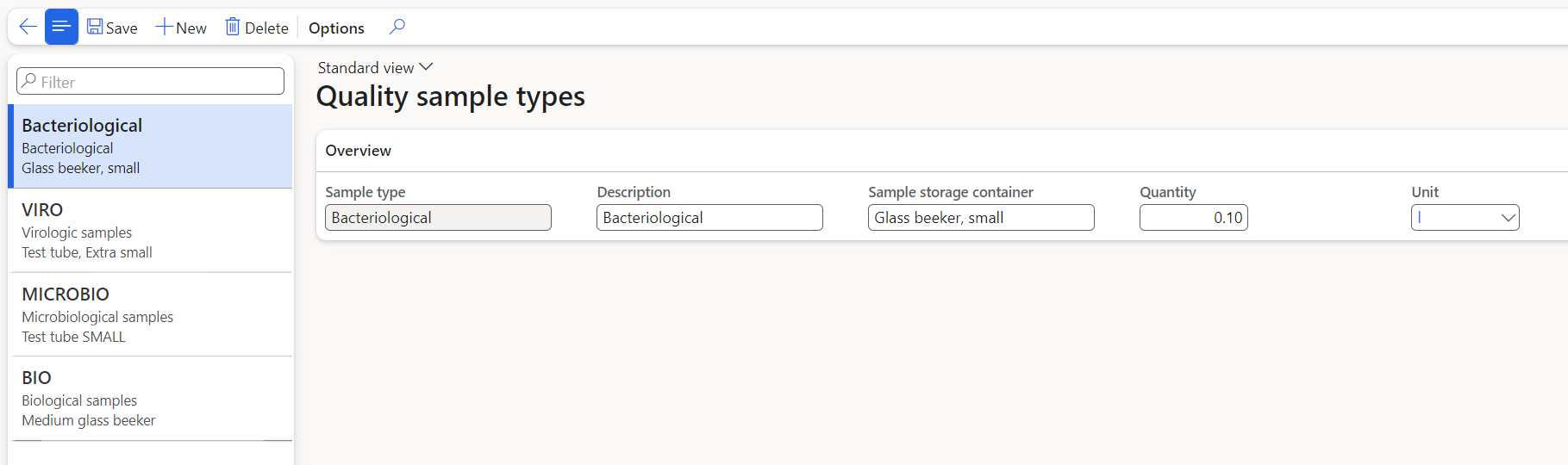
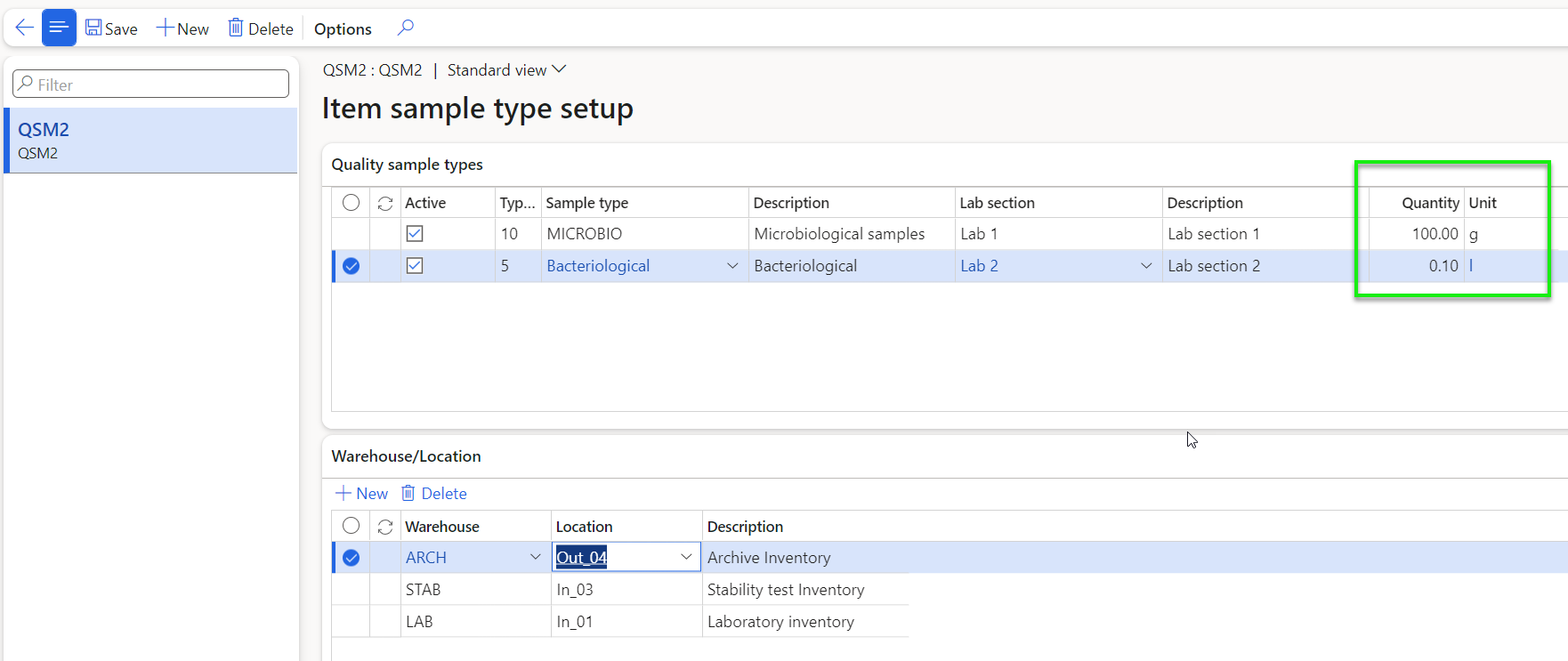
The item sample types are used to define which kind of sample, a specified quantity of the sample is (e.g., a bacteriological, a microbiological) and the laboratory section which performs the analysis. The setup uses sample types with a quantity and container in which it is collected and subsequently stored. The form contains a section where you define sample-specific information such as lab section, quantity etc. There is also an activation checkmark, allowing for easy control of the use of a sample type.
If activated, the associated sample types for an item will be created every time a sample for the item is created. The sample types can hold information of the actual storage location of the sample type, and the storage can change according to status of the sample type. The Site and Warehouse used for sample storage is set up as system parameters for the 3 following areas: Archive, Stability and Laboratory. See 4.2.2 for setup parameters.
The process of registration in the lab. and the rest of the sample status updates can be performed for samples as well as for sample types.
Item sample type setup
Path: (Quality\Setup\Quality control)
Item sample types are a setup form accessed from the Released products form. Here you can define the possible types a sample can be divided into, this is useful if a sample is taken and part of it should be used for e.g. microbiological tests and part for bacteriological tests. The individual sample type holds a qty and a unit of measure, these would normally be very different from the inventory unit, so remember to set up unit conversions between these and the inventory unit of the product. When creating a sample that holds a sample type setup, you can choose to use the summarized ‘quantity’ of the types as the sample quantity.
Test groups
Path: (Quality\Setup\Quality control) Test groups are an important part of quality control. Their main purpose is to define the sequence of tests performed with a specific purpose in a quality order and they are sometimes referred to as check lists or test plan. Secondly, they tie all the various groups and settings together and relate the measured test results to the control of the supply chain.
Functions in Test groups (advanced)
Several functions and improvements have been added by CEPHEO Advanced Quality Control for D365FO. This includes a framework for automatic release of batches or license plates, which does NOT depend on the standard failing or passing of a quality order. Instead, this system functions by giving all tests a priority, where priority 1 tests control the release of a whole batch, individual license plates or a sequence of license plates. It is important to be aware that this release can be performed before all tests are finished on the quality order, and it is possible to have a single priority 1 test that passes leading to automatic release of the batch or license plate, followed by the failing of the remaining priority 2-4 tests and therefore the status of the quality order itself. The detail of the automatic release is explained in the next chapter.
There is, however, the possibility of the disposition code to block any automatic updates. This means that after the first update, the disposition code on the batch/license plate will no longer be changed by the automatic functions. This can also be used if something happens to the batch/license plate production that isn’t registered in the ERP system. An example could be that a license plate and its content is damaged in transport or contaminated due to spillage and you have manually allocated a blocking disposition code to it and then you of course do not want an automatic process to un-block it.
Test groups – action pane
Several new functions have been added to the action pane:

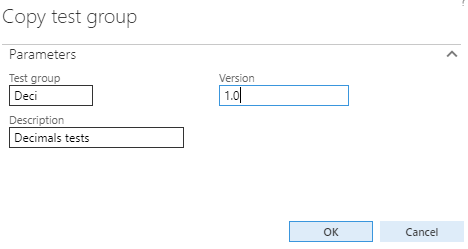
- Copy test group – It is now possible to create a test group by copying and modifying a selected existing group. This creates a new and non-approved test group with the name, description and version entered. When copying a test group to a new test group, attached documents will not be copied to the new test group not the approval status.
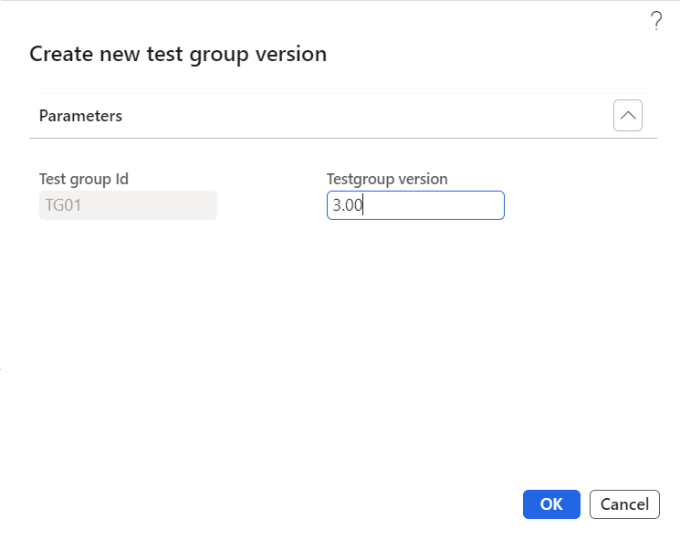
- New test group version – It is possible to create a new version of a test group and keep a version history to see the change history. When a new version is created, it saves the old version in the Test group history and if the test group is used on 1 or several adv. quality associations, the new version of the test group will be used prospectively:
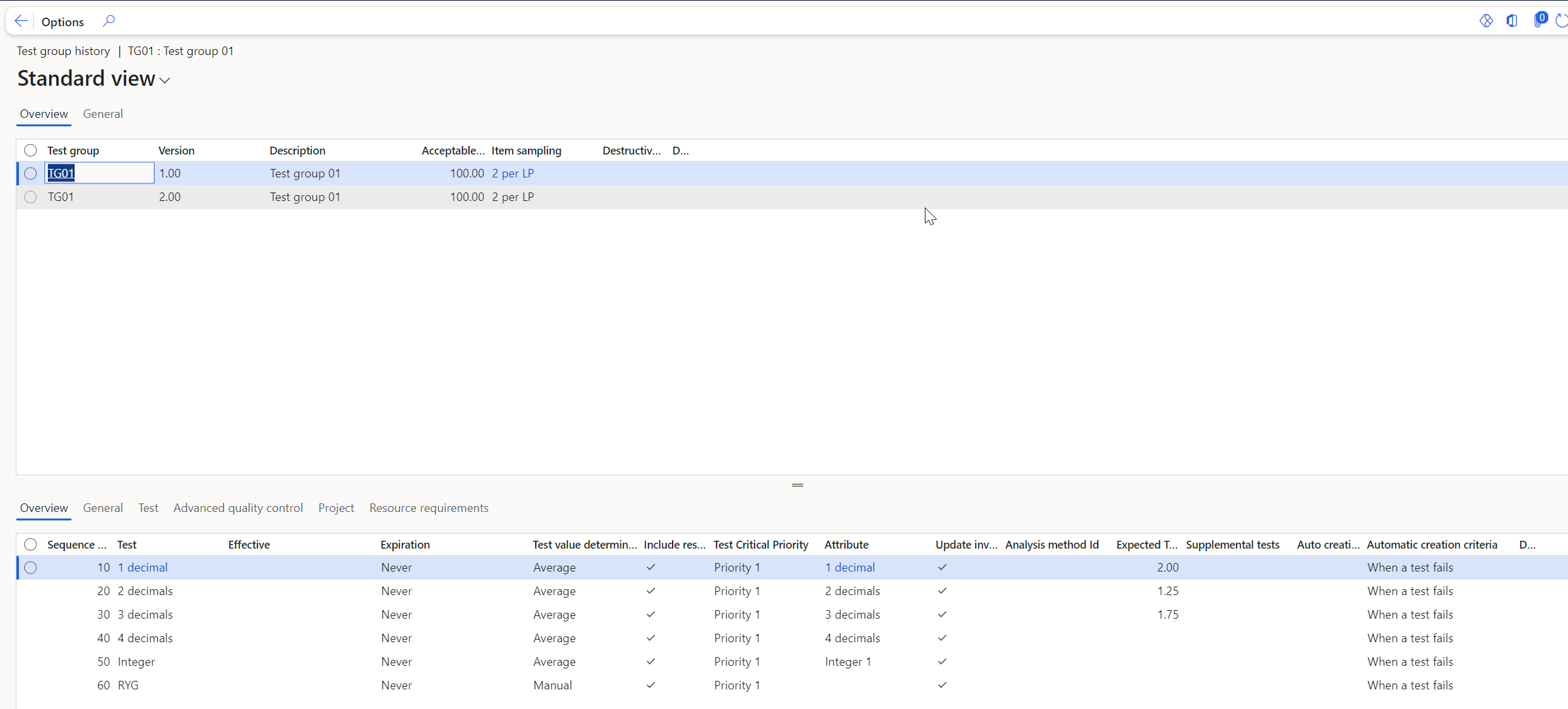
- Show test group history – It is possible to see content of old versions of the test group.
Test groups – header
The test group form consists of three parts – an action pane with function buttons, a header section that controls the interaction and consequences of the tests, and below there is a line section, where all the tests in a specific group are listed and the specific setup for each test are defined.
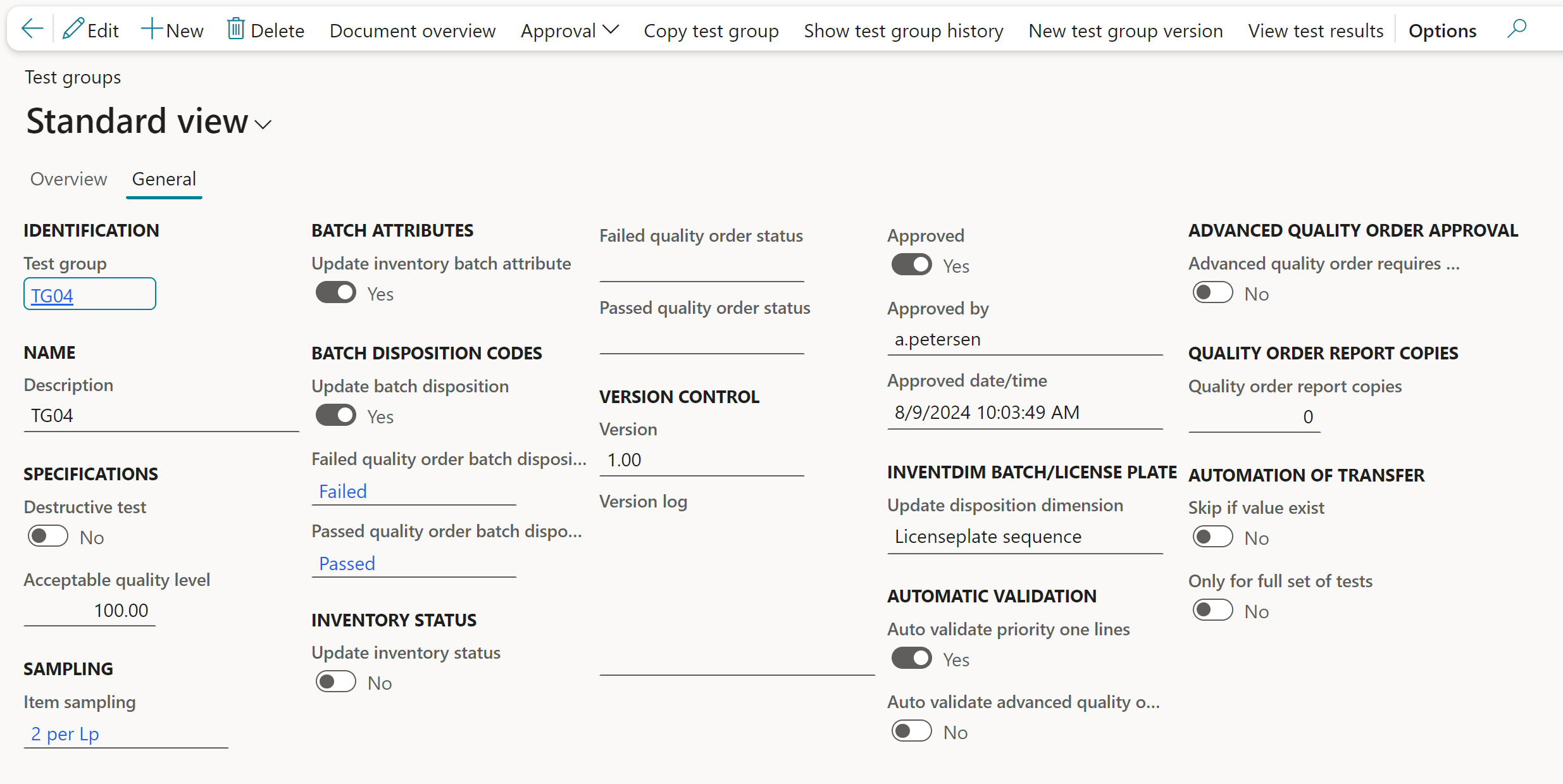
The test group header holds the following fields:
Field | Description | Comments |
Identification | Unique ID | |
Description | Description / name of the test group | |
Acceptable quality level | This field controls the percentage of the tests that must be passed for the quality order to pass | |
Item sampling | Here you can select the default item sampling for the test group. | See section 4.3.9 |
Batch attributes | This controls the automatic transfer of test line results to batch attributes. | We do not recommend using this setting, because of the possibility to have multiple open quality orders for the same batch at the same time. |
Batch disposition codes (group) | This group controls how the disposition code of a batch or license plate will react to the failing or passing of the quality order. | There settings are used also for outcome of priority 1 validation |
Inventory status (group) | This is a general disposition for inventory similar to batch disposition codes | See above |
Version Control | Version id and Version log text for this version of the test group. | Version can only be edited when a new version is created. CEPHEO feature |
Update disposition dimension | Settings which control what dimension is being updated by this test group. Two values are possible. Batch – Disposition code for the Batch-Id is updated License plate – Disposition code for LP is updated License plate sequence | CEPHEO feature |
Auto validate priority one lines | This field controls the automatic release of batches or license plates as soon as priority 1 tests are passed for the last open quality order for the Batch or license plate NOTE: The automatic validation for a test will only be performed when test results are registered for the exact quantity on the quality order, although it is possible to register test results for a quantity larger than the quality order. | See description above CEPHEO feature |
Auto validate quality order | This field controls the automatic validation of the quality order as soon as all tests are performed. | CEPHEO feature |
Approved | Approval status of the test group A test group can only be approved if all tests and supplemental tests in the test group is also approved | CEPHEO feature |
Approved by | The user that has approved the test group | CEPHEO feature |
Approved date/time | The time of approval | CEPHEO feature |
Skip if value exists | This parameter controls whether entering a test result for an adv. quality order line should overwrite (default – Un-ticked) an already existing value on a batch attribute OR (if ticked YES) an already existing value of a batch attribute on a product/batch combination should not be updated. The field value is copied to the adv. Quality order lines on tab page General where it can be amended. | CEPHEO feature |
Only for full set of tests | Together with the above-mentioned parameter this determines when batch attribute values are transferred automatically à Ticked: Only when the last test result for the order qty has been entered for lines marked to part of the result are in, will the transfer occur automatically. | CEPHEO feature |
Test groups – lines
The overview tab of the lines shows the tests that are linked to a test group and their sequence:
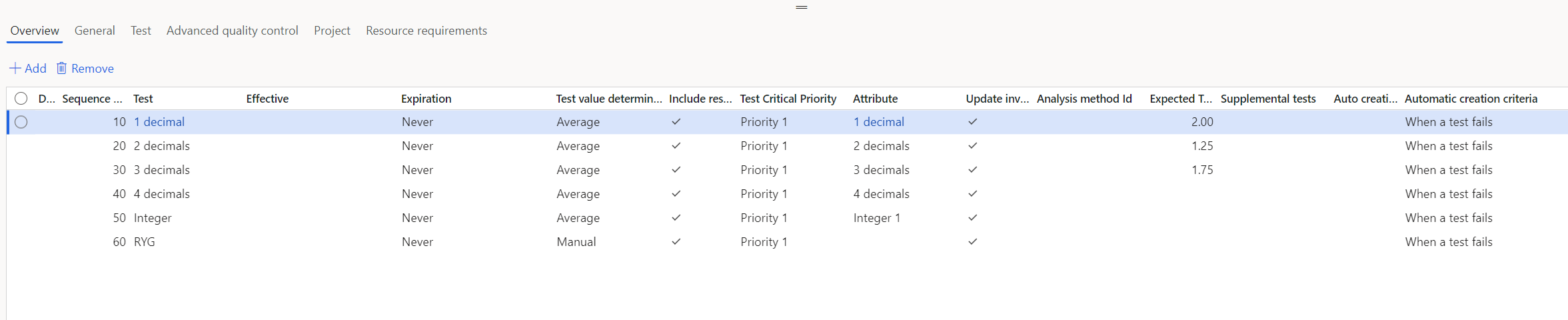
It contains the following fields:
Field | Description | Comment |
Sequence number | The normal sequence of the tests | |
Test | The test to be performed | |
Effective | The start date, where the test is required | |
Expiration | The date where the test is no longer required | |
Test value determination | This decides how the entered test results will be compared to the requirement for passing. It is possible to select min., max., average or manual. ‘Manual’ must be used if the outcome is a qualitative selection from a self-created enum list. | |
Include results | Is this test line part of the validation of the quality order | |
Test Critical Priority | The priority of the test line is for the quality order. Only Priority 1 tests can be automatic validated. | Priority can be 1-4 |
Attribute | This field decides which batch attribute that is measured by the test | |
Update inventory batch attribute | This field determines if the batch attribute on the tested batch is updated with the values measured during the test | We do not recommend using this setting, because of the possibility to have multiple open quality orders for the same batch at the same time. |
Analysis method id | The method used to perform the test | |
Expected treatment time | Expected test duration | Centi hours |
Supplementary tests | Test group containing supplemental test that can be added manually or automatically | This can be done from the ‘Test results’ form. |
Auto creation of supplemental test | Must supplemental test be added automatically when criteria are met | |
Automatic creation criteria | Setup for when supplemental tests will be added When a test result fails When a test fails | |
Documents | Shows if there are any documents attached to the test |
The general tab includes the extra fields:

Field | Description | Comment |
Certificate of analysis report | Should CoA be generated for this test? | This refers to the standard quality management document, which we do not use. |
Action on failure | What shall happen to the test if it fails? | Fail / Accept |
Acceptable quality level | If a quantity of items is tested, which percentage must pass for the test to pass? | On the result page, several results can be registered for the same test |
Manual test result quantity | Test result quantities are entered manually together with the test result | If setup to ‘No’ an automatic calculation will equally distribute the test result quantity to all test results |
Cost | What is the cost of the test? | In company currency The cost will be accumulated for all tests in an advanced quality order |
The test tab contains the extra fields:
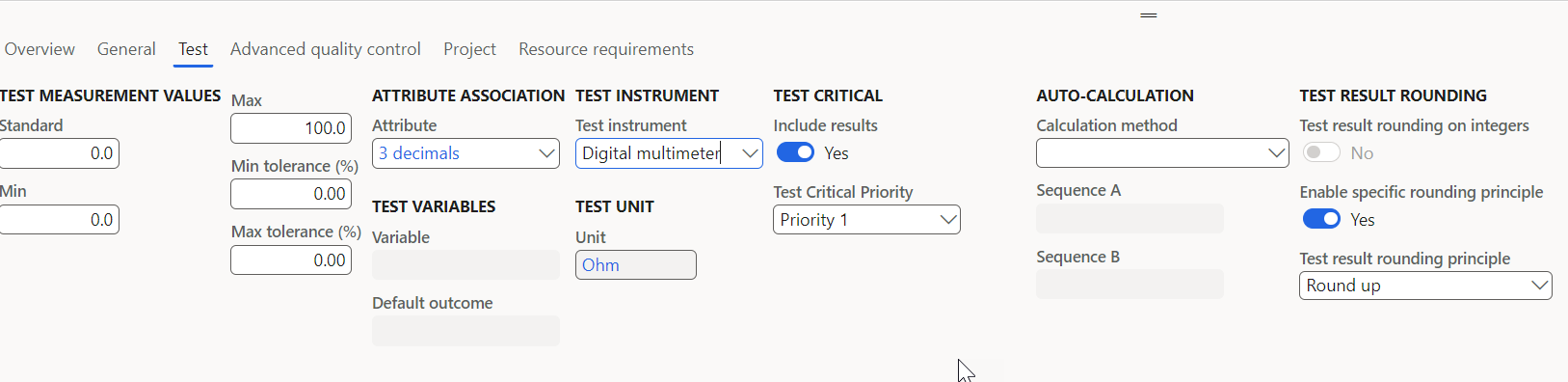
Field | Description | Comment |
Test measurements value (group) | This group sets the limits for the test results. | These fields are active if the test type is set to integer or fraction |
Test variables (group) | This group sets the test variable used if this is a qualitative test, as well as default outcome | This field is active if the test type is set to option |
Test instrument | Test instrument used for the test | |
Test unit | The unit inherited from the test | |
Test criticality | As described in the introduction, a separate release system has been introduced that looks only at priority 1 tests. | |
Auto-calculation group | On the field ‘calculation method’ it is possible to select a method of calculating the test result based on the results of other tests on the quality order. It can be either: Inherited = test A Addition = test A + test B Subtraction = test A – test B Color = A + B/10 NOTE: Auto-calculation can also be used for supplemental tests, because of change in sequence number for the tests when inserted as supplemental tests. | The value will be calculated when the last result for the included test lines is inserted. If the result trigger supplemental test, the supplemental test will be inserted before any control for automatic validation are done. |
Test result rounding on integers | Integer test results that are entered as decimal numbers will be rounded off and saved as integers. This can only be selected for tests that have the type ‘Integer’ | Inherited from the test, but can be changed here |
Enable specific rounding principle | Test results and test values will be rounded off using the rounding principle specified. This parameter is available to use for both fraction and Integer tests. | Inherited from the test, but can be changed here |
Test rounding principle | Test results and test values will be rounded off using the rounding principle specified. The following principles can be selected for all type of tests setup for all decimal precisions selected for the test unit. Round to nearest (always to nearest value- 1..4 rounded down, 5..9 rounded up) Round up (always rounded up) Round down (always rounded down) | Inherited from the test, but can be changed here |
The advanced quality control tab is a new tab controlling several new fields:
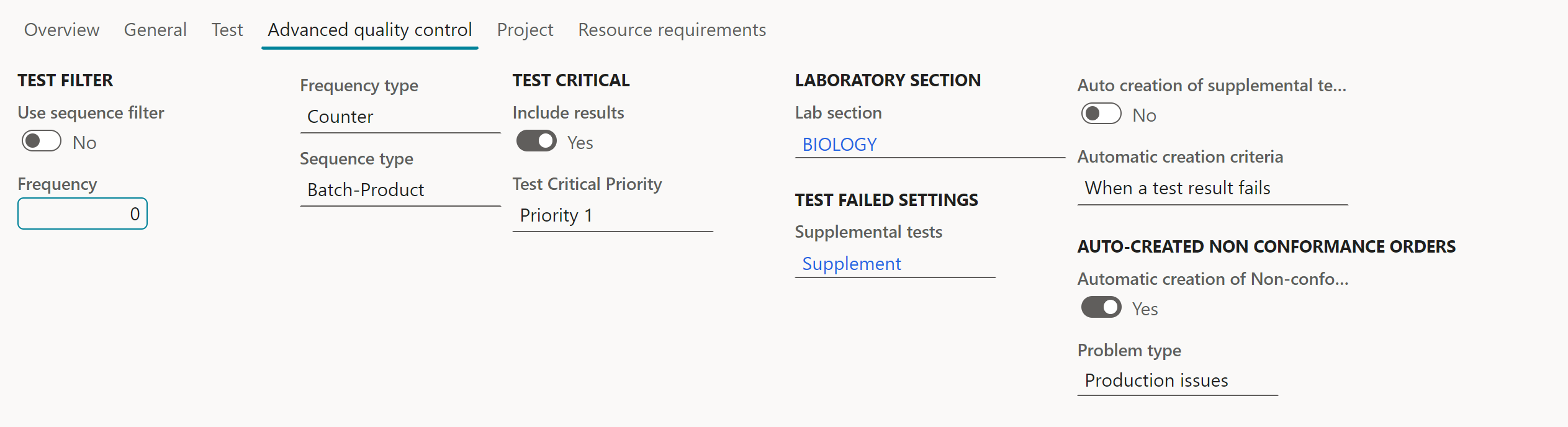
Field | Description | Comments |
Use sequence filter | Here you can enable frequency control of the test. This controls whether this test is to be included in a quality order or not according to the frequency. OBS! - Only used when quality orders are created, not when adding supplemental tests | If enabled, the frequency field below is used. |
Frequency | Here you select the frequency with which the current test will be included in quality orders, based on same Product, Batch or Product/Batch combination (defined in field Sequence type) | The first quality order always includes the test. This value decides how many quality orders are created before it is included again. The counter will be used for advanced quality orders created manually or by using advanced quality associations. |
Frequency type | In this field you selected whether the frequency is stated by COUNTER or by DAYS | |
Sequence type | The sequence types allowed are Batch, Product and Batch + product | NOTE: If the advanced quality orders are of reference type ‘Quality sample’ i.e., triggered via a sample being registered in lab, the sequence types: Product and batch + product will give the same results as sample sequences always are based on the same batch number. |
Test criticality Priority | The priority of the test line for the quality order. Only Priority 1 tests can be automatic validated. | Priority can be 1-4 – Only prio. 1 tests are considered when updating the Quality order phase. |
Supplementary test | Same as overview section | |
Auto-creation of supplementary tests | This parameter field triggers supplementary tests to be added automatically if a test/test result has a failing value | |
Automatic creation criteria (*) | -When a test fails (default value) -When a test result fails | If value 'When a test result fails' is selected, you can also select a new parameter field on tab page General 'Manual test result quantity' that will enable you to manually type in the result quantity on a result line. |
Auto-creation of con conformance order | Default NO. | If set to yes, a non-conformance order of type ‘Adv. Quality order’ is created when (*) auto-creation criterion is met. |
Problem type | Look up problem types | Only Problem types with setup of the reference ‘Adv. Quality order’ are available. |
The 'Project' control tab is a tab containing several new fields. The purpose is to create a project hour forecast records for each test setup in the test group, when creating a quality order using the test group.
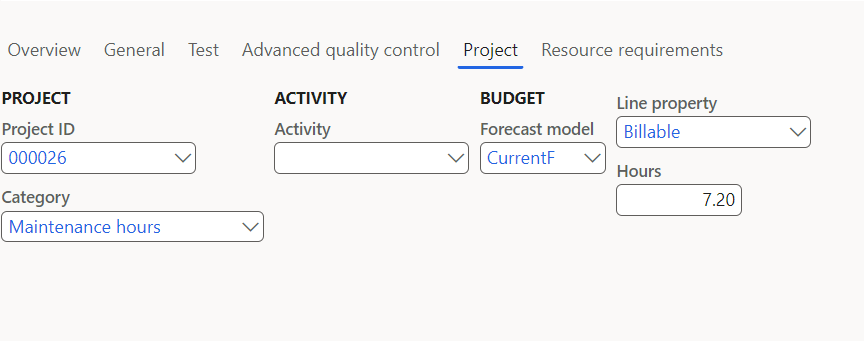
Field | Description | Comments |
Project ID | Project ID to use when creating hour forecast record | |
Category | Category for the hour forecast | |
Activity | Activity for the hour forecast | |
Forecast model | Forecast model for the hour forecast | |
Line property | Line property for the hour forecast | |
Hours | Time for the hour forecast |
The 'Resource requirements' control tab is a tab containing several new fields. The purpose is to allow setup of resources needed to perform the QC of the current test:
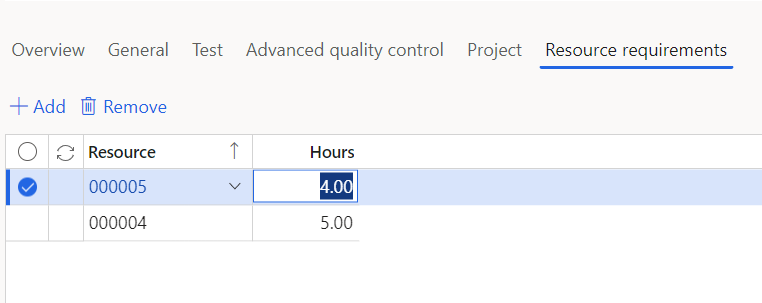
Functionality regarding Supplementary tests
On the tab page 'Advanced Quality Control', the field group 'Test failed settings' is available, containing 3 fields, that enable not only adding supplementary tests when a test fails by activating the menu button 'Add supplementary test', but:
Supplementary tests: In this field you can select a test group that can hold one or more tests, that are added to a quality order, if a test fails.
Auto creation of supplementary tests: If this check box is ticked, the test(s) setup via the test group in previous field are automatically added to the current quality order if 1 of 2 criteria are met:
Automatically creation criteria: Holds the option of selecting 1 of 2 criteria for determining if a 'fail' situation has occurred: 1. When a test fails - When test results for the entire quality have been added up and the result is that the test fails OR 2. When a test result fails – If just 1 failing partial result has been entered for current test, it will trigger the supplementary test(s) to be added.
To control that a registration of test result will not update the test line at the first registration of a test result, a parameter field on tab page General 'Manual test result quantity' that will enable you to manually type in the result quantity on a result line. This will stop the automatic calculation of test quantity in the form 'Register test results' where the result quantity is calculated automatically if entering more than 1 result for a test.
NOTE : We recommend that when setting up Supplementary tests, they should hold another set of batch attributes, than the test it was triggered from, as you may want to save both results on the batch and as you cannot have 2 tests on a quality order with the same batch attribute.
Also 'Supplementary tests' should be the same or a lower priority, than the test it was triggered from, i.e., a Priority 1 test can trigger supplementary test of priority 1 or 2, 3… but a priority 2 test shouldn't trigger a supplementary test of priority 1. This is due to the option of a quality order being set up with 'auto-validation of phase' and/or quality order.
Advanced quality associations
Path: (Quality\Setup\Quality control) Under inventory parameters, when you activate quality management, you decide whether the system should look for quality associations during several processes.
Advanced quality associations create the link between a specific process step and a quality-related action. This will trigger the creation of an Advanced quality order with some pre-defined characteristics, according to the test group selected for the Advanced quality association.
Here you can define how to trigger automatic creation of an Advanced quality order, by choosing site, reference type, item sampling and potential item/account/resource requirements for the specific trigger.
You can also choose the timing of the quality order and whether an event should be blocked. When the quality order is created, it uses the sampling, test group and quality order creation parameters specified here.
It is recommended NOT to change/update the reference type on an active association record, but instead to delete the record and create a new one with the wanted reference type.
Quality order creation criteria
If it is not every time an advanced quality association is triggered that a quality order is needed, you can set up different criteria for controlling the wanted sequence for advanced quality order creation. By setting the ‘Use extended creation criteria’ to the value ‘Yes’, the following setup will be available:
Sequence type: | This decides what we count. If the value is ‘Batch’, we count on a batch ID independent of the product (for the current association record). This is designed for the production of bulk items, where a single product is manufactured (i.e., orange juice) and the batch is then bottled into various sizes with batch number inheritance. This only makes sense, however, if the item code is set to ‘Group’ and a quality group with the same containerized items is created. If the value is ‘Product’, we count the triggers for the product ID independently of the batch number. If the value is ‘Batch-Product’, we count the triggers for the combination of Product and Batch number. |
Frequency: | Value for the selected F requency type |
Frequency type: | This controls when the system must act on the specified frequency defined. If it is set to days, it creates the quality order when triggered every number of ‘frequency’ (e.g., every 2nd day). If set to counter, it happens every ‘frequency’ time (e.g., every 10th time). |
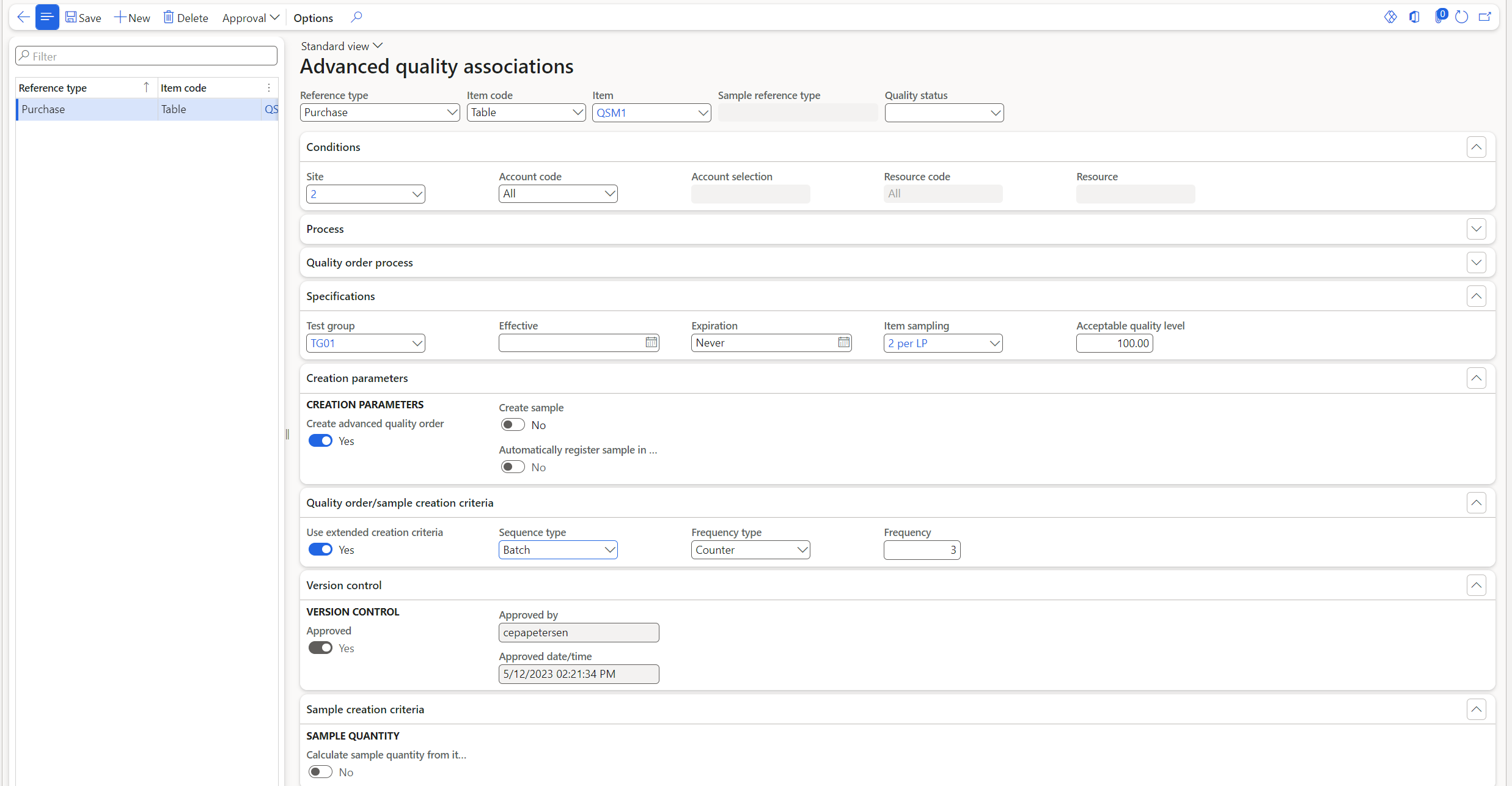
The above example illustrates a setup where a purchase registration (warehouse management process) is triggering this quality association if the following conditions is found:
Site=2
Item=QSM1
First time a new batch is received from a purchase order (Registered = status when receiving using warehouse app)
- Next time after 3 receptions on the same Batch Id.
Using Resource as determinator for quality samples to trigger adv. Quality orders
On quality samples you can state where the sample was taken during production by stating a resource:
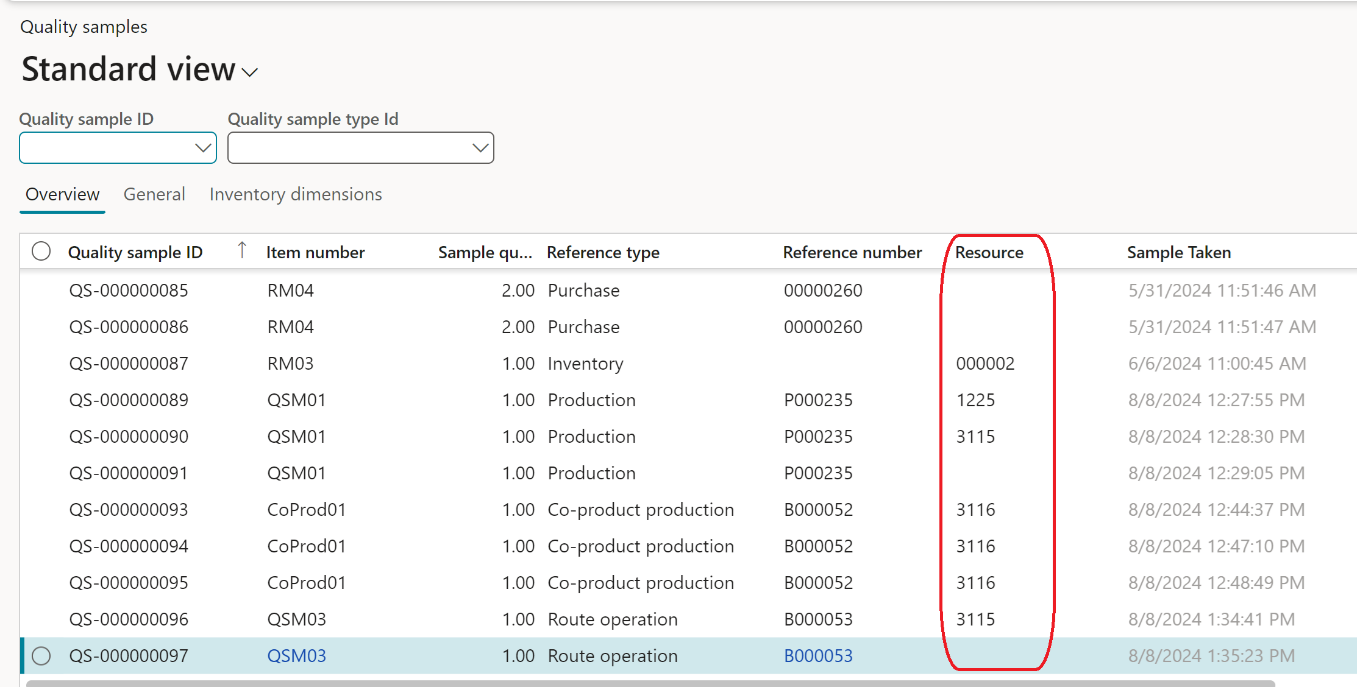
For the following combinations it is now possible to state a single resource code:
(*): The record must be saved before selecting the resource for resource code ‘Table’ go get a look up for the correct Site.
Reference type | Sample reference type | Resource code | Resource |
Quality sample | Production | All | - |
Quality sample | Quality sample | Table | New – State single resource (*) |
Quality sample | Co-product production | All | - |
Quality sample | Quality sample | Table | New – State single resource (*) |
Quality sample | Route operation | All | - |
Quality sample | Quality sample | Table | New – State single resource (*) |
Quality sample | Inventory | All | - |
Quality sample | Inventory | Table | New – State single resource (*) |
Remote device setup for batch-level reception with one quality order
When receiving raw materials in ‘Purchase receipts’ or finished items via ‘Reporting as finished’ from productions, it would often be preferred that only one quality order per batch (Reference types 'Purchase order' or 'Production/Route operations' in adv. quality associations) was generated. The standard D365FO Warehouse Management app would create a quality order per reception action, i.e., the registration of one or more LPs. If item arrival was done in the D365FO client via a journal, you would receive multiple LPs in one journal, and this would trigger one quality order/sample. If you, however, were to receive one LP at a time, as is the case when receiving through the Warehouse Management app, a quality order could be triggered for each LP.
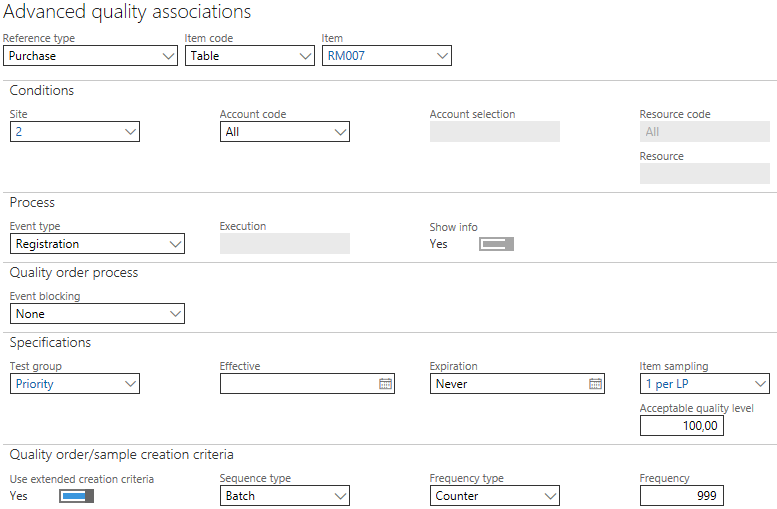
To avoid this. the following setup can be used:
- Select the check box field 'Use extended creation criteria'
- Select sequence type = Batch (or Product or Batch/product)
Set up the frequency for days or counter and the frequency to as high a number that it would only be triggered once per batch/product/batch-product combination. This would mean that the first LP reception will trigger an advanced quality order, and not until the frequency is met, a second advanced quality order would be triggered:
Event types for reference type ‘Production’
In standard D365FO, the reference type ‘Production’ can only be triggered by the events ‘Report as finished’ and ‘Registration’. That way it is only possible to trigger a quality association for events that are updating inventory transactions for the produced quantity.
In several different industries, there is also a request for being able to trigger a quality association before anything has been produced, for control processes such as documenting line clearance or cleaning. To support this, the Quality and Sample management module has added two new event types to be used for reference type ‘Production’, that are placed earlier in the production flow and do not require any update of the produced quantity. The two new event types are:
Release: | This will trigger a quality association when a production order is being released. When resetting status of the production order and perform release of the same production order again, the quality association will be triggered again. |
Start: | This will trigger the quality association when a production order is being started. When resetting the status of the production order and performing the start of the same production order again, the quality association will be triggered again. The same will happen if only starting a reduced quantity, each time ‘Start’ is performed, the quality association will be triggered. |
Reference type ‘Return order’
In D365FO the RMA system (Return Management) is a subtype of a sales order. Therefore, RMA orders cannot be set up as a quality association in standard D365FO
To support the processes of quality assurance of products being returned from customers, the Quality associations in the Advanced quality control module for the specific reference type ‘Return order’ can be set up.
The setup of quality associations with reference type ‘Return order’, can be setup in the same way as reference type ‘Sales’, but without the possibility to choose any ‘Event type’, it defaults to ‘Registration’.
Reference type ‘Transfer order’
In D365FO the Transfer order can be found under Inventory management and is used to move on hand from one Site/warehouse combination to another via a transit warehouse.
To support the processes of quality assurance of products being received against a transfer order line the Quality Associations in the Advanced quality control module for the specific reference type ‘Transfer order’ can be setup.
The setup of quality associations with reference type ‘Transfer order’, can be setup with the event types ‘Registration’ or ‘Product receipt’.
Approval of advanced quality association
Advanced quality associations are controlled by an approval framework and are not valid before approval has been performed.
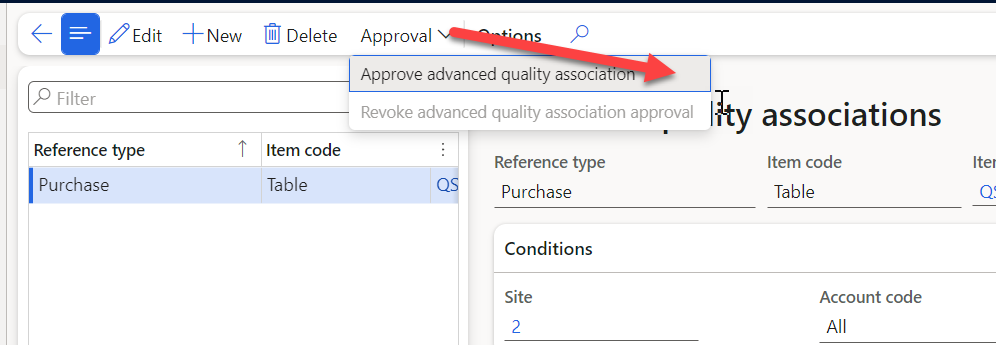
When approving the advanced quality association, the test group and tests in the test group must be approved as well. If one or more elements are not approved, the advanced quality association cannot be approved.
When approval has been performed, it is not possible to edit the record, unless the parameters to allow edit for approved quality associations is activated in the parameter settings.
Test master overview
To get an overview of the total test setup for a specific item number, a test master overview form is available. The form can be found from the released product in the quality section.
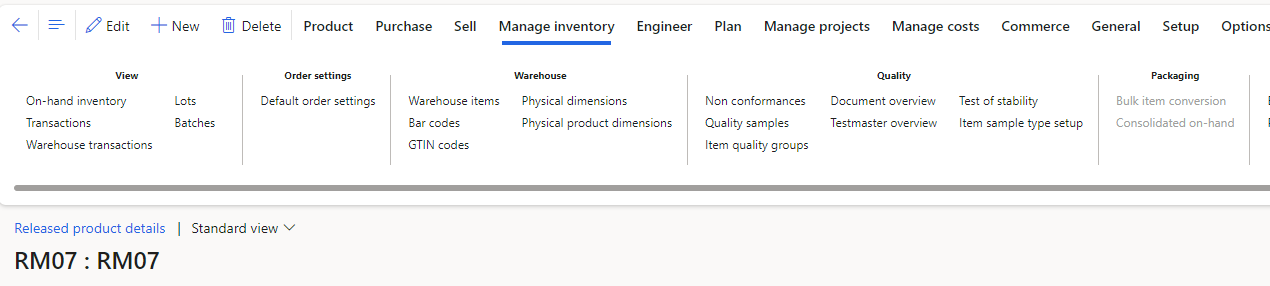
When opening the test master overview form, all test setup for the product is presented. Also test setup where the product is part of a quality group or in other ways is setup for testing, is shown.
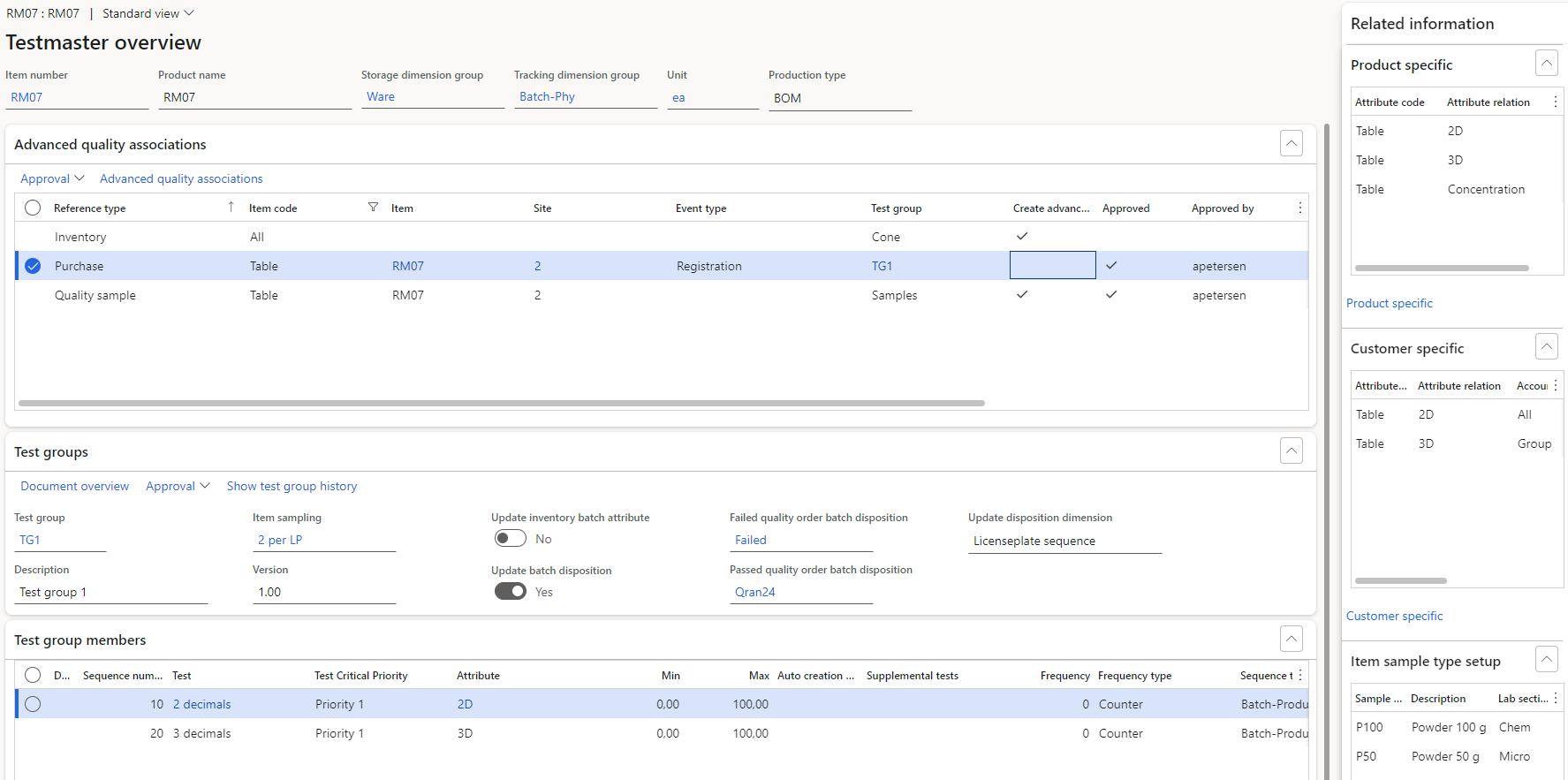
For the selected item, related information for product specific batch attributes, customer specific batch attributes and item sample type can be shown by activating the available fact boxes. From each fact box, a direct link is available for setting up the relevant data.
For each selected advanced quality association, the related setup for the normal test group is shown below.
Advanced quality order
When created, the Advanced quality order inherits information from the Advanced quality association being used. The information on the quality order can be changed manually after creation i.e., change of parameters or adding or removing tests.
The test lines for a quality order, indicates outcome of test results. The following icons are used:

Results registered for the test have led to Pass of the test

Sufficient results for the test have not yet been registered to perform validation of the test

Results registered for the test has led to Fail of the test

The test lines will also indicate if a test result has already been registered, that are not yet ready to be part of the test validation. This could be the case where operators are creating several test results for the same test, and a Backoffice (lab) process is doing the validation of the registered test results.
The indication can be seen in the field ‘Values entered’
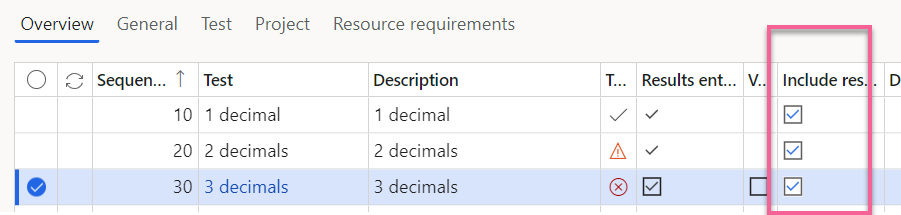
The single test will be calculated with information of expected treatment finished time, according to the setup of expected treatment time and the calendar setup for the lab section performing the analyses. If no lab section or no calendar is specified, the base calendar in advanced quality control parameters is used. The calculation is performed when the advanced quality order is created, if expected treatment time is set up for the tests.
Based on expected treatment finished time for the tests, filters (Views) can be set up to show tests where test results have not been entered within the expected timeframe.

Create Advanced quality order
Advanced quality orders can be created, using different processes
Using Advanced quality association
Advanced quality associations can be used to create quality orders by executing one of the events for one or more of the 9 available reference types.
Triggered via a sample being registered in lab
When using Quality samples on adv. quality associations you can have a setup that triggers a quality sample that is manually or auto registered in lab, and if you have another adv. quality association of reference 'Quality sample' that is setup to trigger an adv. quality order every time or more frequently used, by a frequency of less than every time, e.g. you can have a setup where registering a sample in lab should trigger an adv. Quality order to be created every 4th time.
Manual creation
When working with production orders, users sometimes need to create an Advanced quality order for a production before any production output has been done. Therefore, the user does not know anything about LP and location at time of quality order creation.
This combination is not allowed in standard D365FO for products setup to use the reservation principle ‘Batch below’ but is allowed for products setup to use ‘Batch above’ reservation.
Users need to be able to manually create a quality order for productions before any output is done, no matter what reservation principle the product is using.
Therefore, manual creation of an Advanced quality order of reference type Production, Route operation or Purchase, is possible for the following combination of setup:
The batch to be tested, doesn’t have any on-hand yet, Location and LP is therefore unknown.
The item is setup to use Warehouse Management with a reservation hierarchy using batch below or batch above
The test group is setup to control/release on Batch level
At manual creation of an Advanced quality order, controls will be carried out to verify the settings above, when no LP and location are known. If one or more of the settings are not met, creation of the Advanced quality order is not possible.
Advanced quality order form
Path: (Quality\Common\Advanced quality order) A advanced quality order defines a set of one or more tests (via the test group) that must be performed for an item and a test quantity of its related order (such as a Purchase-, Sales, RMA-, Transfer- or Production order..) or a test quantity of its inventory.
Multiple Process Industry fields, menu buttons/-functions have been added to the advanced quality order form:
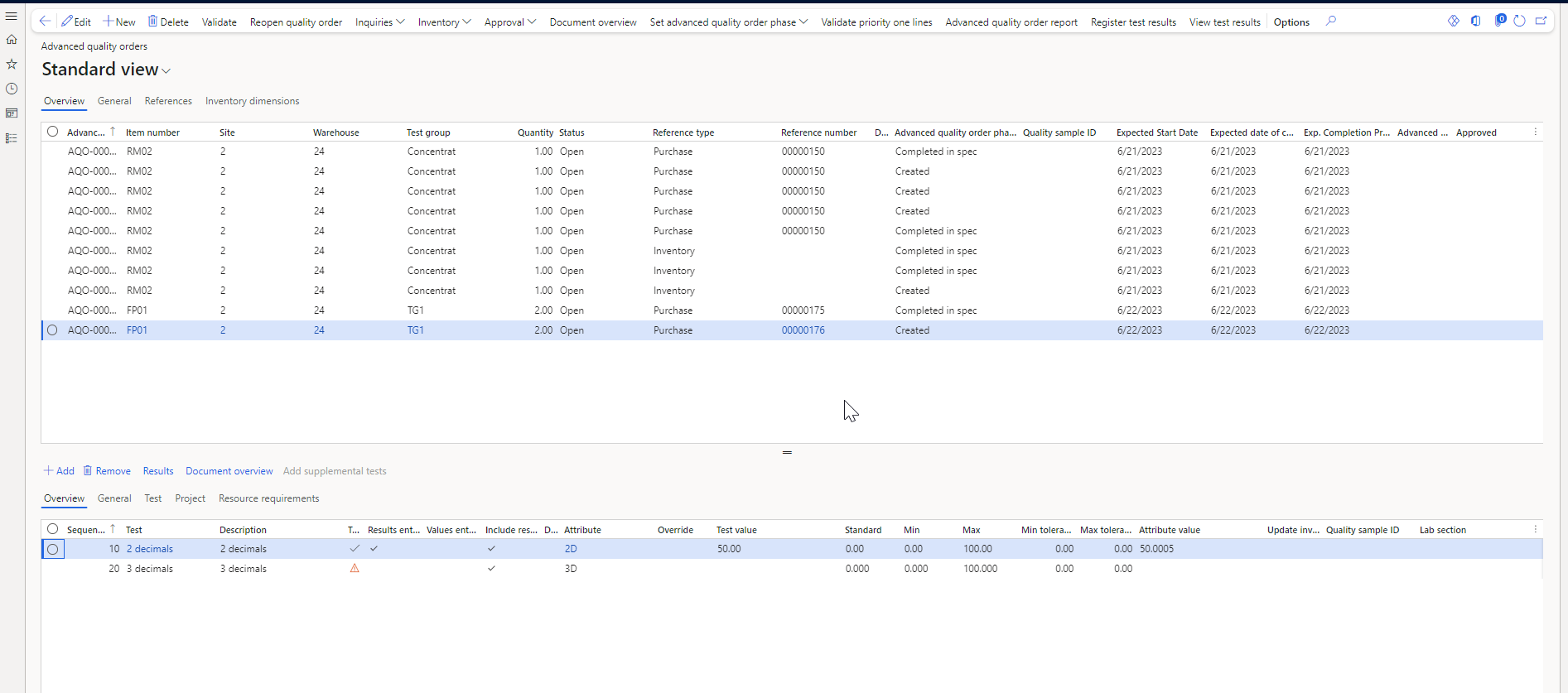
Field/Menu button | Description | Comment |
Set quality order phase | If the test group of the quality order hasn't been set up for auto-validation of priority 1 lines, it is possible via this menu function manually to update the field 'Quality order phase' | Quality order phases: Started, Priority one completed, completed in spec. and ‘Completed out of spec’. |
Validate priority 1 lines | If the test group of the quality order hasn't been setup for auto-validation of priority 1 lines, it is possible via this menu function manually to update/validate all quality order lines that are setup as Priority 1 lines. | Updating priority 1 lines will trigger the release functionality of batch or LP's. |
Advanced quality order report | Via the menu item it is possible to generate a report of the quality order with reference type 'Samples' to the print option of choice. | The quality order report is data from the sample and the tests and test results. The report can be triggered manually or automatically when an advanced quality order is generated. |
Register test results | Opens the form ’Register test results’ for the current value, when advanced quality order has an open status. | |
View test results | The view test result form is for adv. Quality order of reference type = Quality samples. Here you can see all quality orders related to the item + batch | |
Expected start date | Expected start date of the advanced quality order | This date will default be the date the order is created but can be postponed |
Expected date of completion | Expected date of completion for all tests regardless of priority | This date is calculated based on the expected treatment time (the largest) and the calendar from the Adv. Quality control parameter unless a lab section with calendar has been defined on one or more of the tests, then this calendar’s opening hours are used. NOTE: A lab section can hold a cut off time (only quality orders based on a quality sample will use this Cut-off time, as it is the only reference type where we have a date+ time stamp) that can influence the calculation as well and a value in field ‘Postponed day’s’ can have an influence on calculation. NOTE: If AQO is reference type = Quality sample the ‘start time’ used is the time/date the sample has arrived in lab’, all other reference types use only a date and here the 1st minute of the creation date expressed in the legal entities time zone. |
Expected date of completion | Expected date of completion for all priority one tests | Same as above but only based on Prio. 1 tests. |
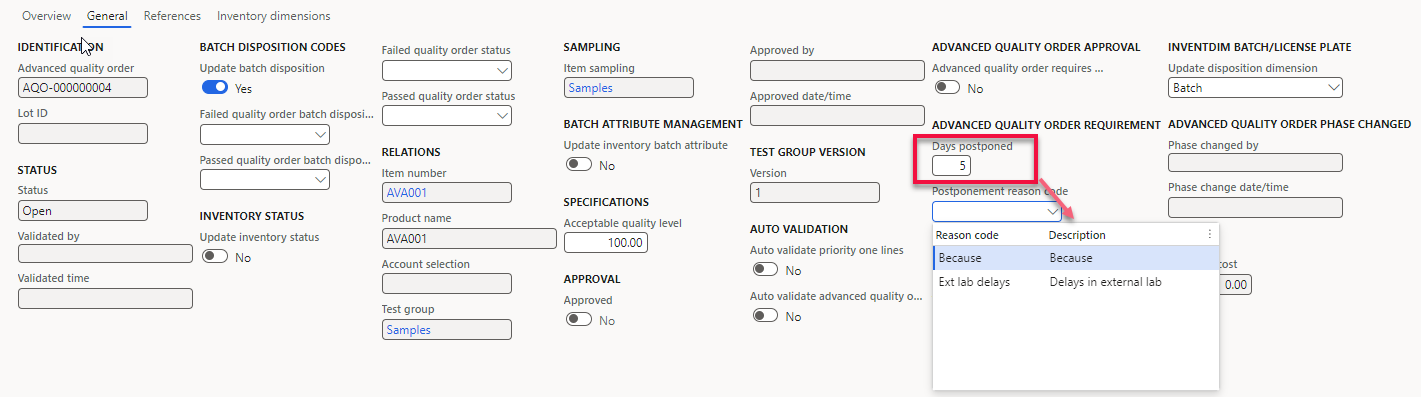
Days postponed | Number of days to postpone the expected data of completion | The dates for Expected Completion and for Expected completion pri. 1, will be recalculated according to the calendars used. |
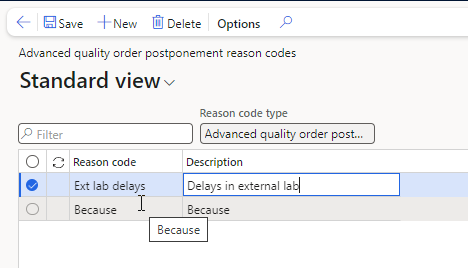
Postponement reason code | Reason code can be (not mandatory) used to state reason for postponing an adv. Quality order | Reason codes are created and maintained in supporting table ‘Advanced quality order postponement reason codes’ |
Advanced Quality Order postponement reason codes
In the form ‘Advanced quality order postponement reason codes you can create and maintain reason codes used when entering several days to postpone an Adv. Quality order: